
---
init:
  theme: "dark"
  themeCSS: ".label foreignObject, .cluster-label foreignObject { font-size: 90%; overflow: visible; }"
---
flowchart LR
  A1[qmd] --> B1{"R<br>(<code>engine: knitr</code>)"}
  A1[qmd] --> B2{"Python<br>(<code>engine: jupyter</code>)"}
  A1[qmd] --> B3{"Julia<br>(<code>engine: julia</code>)"}
  A2[ipynb] --> B2
  B1 --> C[md]
  B2 --> C[md]
  B3 --> C[md]
  C --> D{"Pandoc"}
  D --> E["HTML"]
  D --> F["Typst"]
  D --> G["Reveal.js"]
  D --> H[...]

  subgraph engine [Engine]
  B1
  B2
  B3
  end
Introduction & Setup
Session 1
Introduction
Session 1: Introduction & Setup
- Welcome & Overview
- Workshop objectives and participant goals.
- Quarto overview: purpose, strengths, and reproducibility benefits.
- What Quarto is and how it works with Pandoc.
- Brief look at the Quarto Guide.
- Installation & Environment Setup
- Installing Quarto (installer, Homebrew, Chocolatey).
- Verify installation with
quarto check. - Quarto as a command-line interface.
- Quarto Projects
- Project types: default, website, blog, book, manuscript.
- Creating projects with
quarto create project. - Writing with various editors (VS Code, RStudio, Jupyter, etc.).
Workshop Objectives
- Familiarise participants with the Quarto ecosystem.
- Empower attendees to create reproducible documents and interactive publications.
- Guide learners through embedding code, adjusting outputs, and publishing projects.
- Encourage hands-on practice with interactive sessions.
Learning Objectives
By the end of this session, participants will be able to:
- Explain what Quarto is and how it relates to Pandoc.
- Install Quarto and verify the installation.
- Create and render different Quarto project types.
- Set up an IDE for Quarto development.
What is
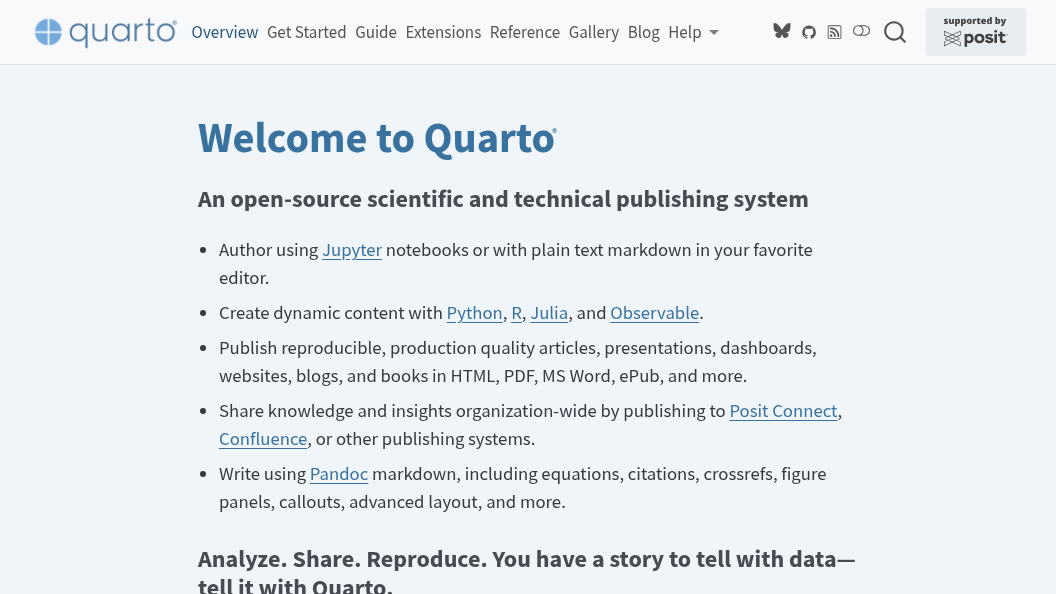
- Multi-language platform supporting Python, R, Julia, and Observable.js.
- Creates dynamic, reproducible documents from code and narrative text.
- Single-source authoring for articles, websites, books, presentations, and dashboards.
Key Strengths
- Multi-format output
- Generate HTML, PDF, Word, ePub, and more from one source.
- Advanced markdown
- Cross-references, equations, citations, callouts, and complex layouts.
- Tool flexibility
- Works with VS Code, RStudio, JupyterLab, or any text editor.
- Project system
- Render document collections with shared configurations.
- Interactive elements
- Embed widgets, Shiny apps, and Observable JS for dynamic content.
Reproducibility Benefits
- Embedded computation
- Code and results stay together, eliminating copy-paste errors.
- Version control friendly
- Plain text format works seamlessly with Git.
- Transparent workflows
- Complete audit trail from data to final output.
- Collaborative research
- Shared environments and dependencies ensure consistent results.
What is Pandoc?
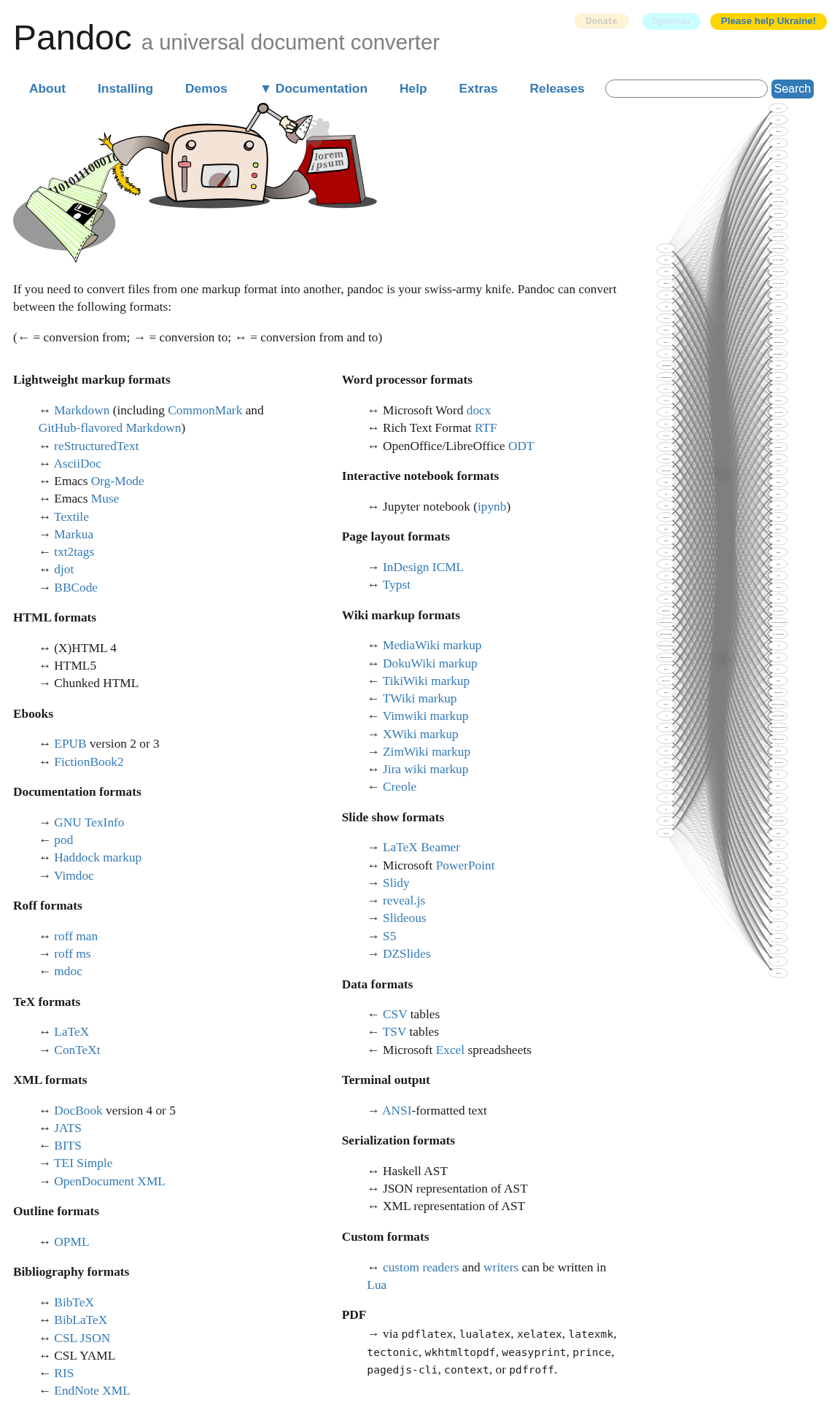
Pandoc (pandoc.org):
- is a free software, released under the GPL by John MacFarlane.
- is a command line interface (CLI).
- allows to convert to and between multiple formats.
- understands Markdown syntax.
- understands LaTeX math and macros.
- handles citations and bibliographies.
How does
A Guide to
Tip
Always use the latest stable release for production work. See the Quarto Changelog for the full release history.
Getting started
Downloading and installing Quarto
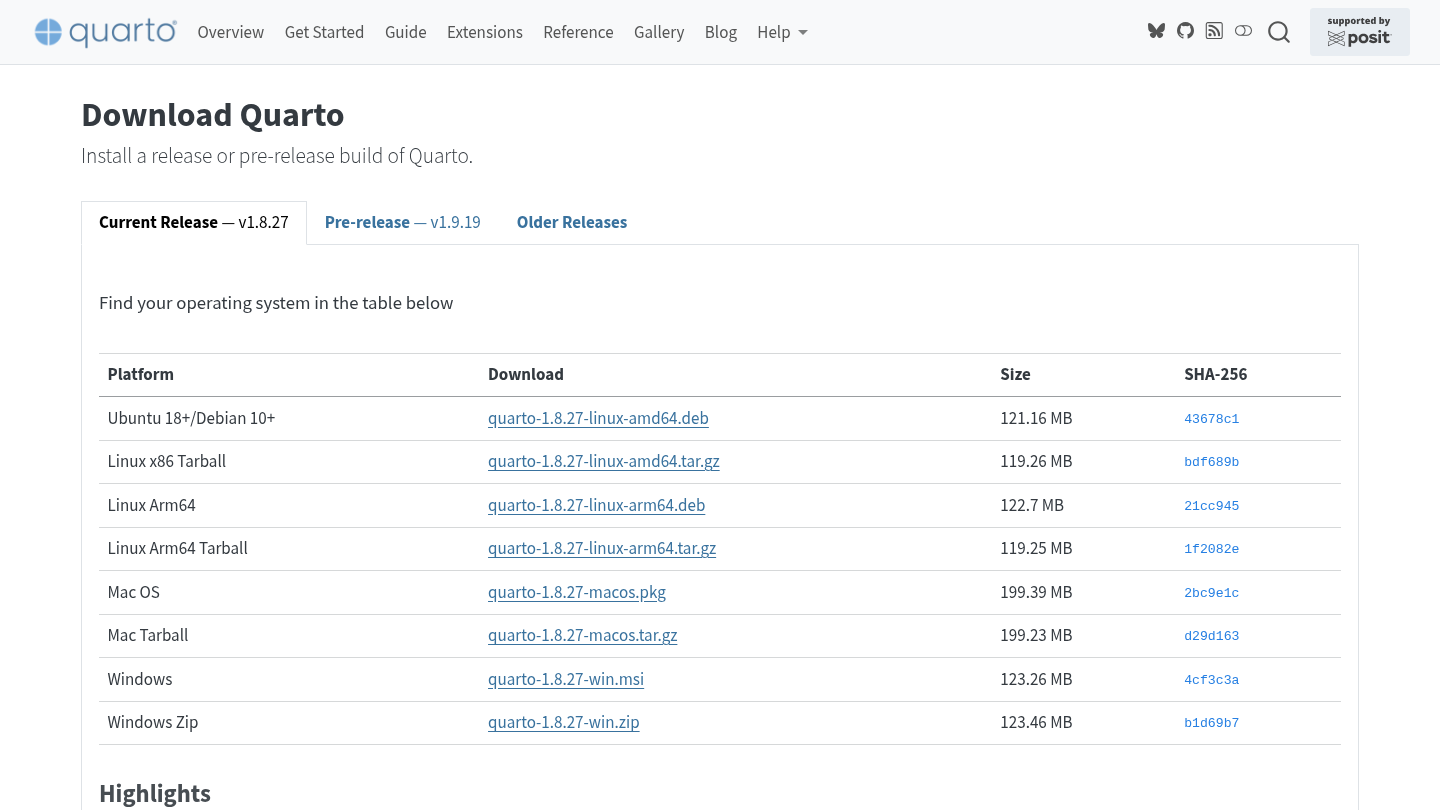
Additionally, you can download and install Quarto using:
Bash
brew install quarto
PowerShell
choco install quarto
Using GitHub Codespaces

A pre-configured development environment is available via GitHub Codespaces with all required tools pre-installed: Quarto, R, Python, Julia, TinyTeX, and supporting utilities.
bash
quarto --help
Usage:   quarto
Version: 1.9.36

Description:

  Quarto CLI

Options:

  -h, --help     - Show this help.
  -V, --version  - Show the version number for this program.

Commands:

  render     [input] [args...]     - Render files or projects to various document types.
  preview    [file] [args...]      - Render and preview a document or website project.
  serve      [input]               - Serve a Shiny interactive document.
  create     [type] [commands...]  - Create a Quarto project or extension
  use        <type> [target]       - Automate document or project setup tasks.
  add        <extension>           - Add an extension to this folder or project
  update     [target...]           - Updates an extension or global dependency (TinyTeX, Chromium, Chrome Headless
                                     Shell, VeraPDF).
  remove     [target...]           - Removes an extension.
  convert    <input>               - Convert documents to alternate representations.
  pandoc     [args...]             - Run the version of Pandoc embedded within Quarto.
  typst      [args...]             - Run the version of Typst embedded within Quarto.
  run        [script] [args...]    - Run a TypeScript, R, Python, or Lua script.
  list       <type>                - Lists an extension or global dependency.
  install    [target...]           - Installs a global dependency (TinyTeX, Chromium, Chrome Headless Shell,
                                     VeraPDF).
  uninstall  [tool]                - Uninstalls a global dependency (TinyTeX, Chromium, Chrome Headless Shell,
                                     VeraPDF).
  tools                            - Display the status of Quarto installed dependencies
  publish    [provider] [path]     - Publish a document or project to a provider.
  check      [target]              - Verify correct functioning of Quarto installation.
  call                             - Access functions of Quarto subsystems such as its rendering engines.
  help       [command]             - Show this help or the help of a sub-command.
Checking
bash
quarto checksh
Quarto 1.8.24
[✓] Checking environment information...
      Quarto cache location: /home/vscode/.cache/quarto
[✓] Checking versions of quarto binary dependencies...
      Pandoc version 3.6.3: OK
      Dart Sass version 1.87.0: OK
      Deno version 2.3.1: OK
      Typst version 0.13.0: OK
[✓] Checking versions of quarto dependencies......OK
[✓] Checking Quarto installation......OK
      Version: 1.8.24
      Path: /opt/quarto/bin

[✓] Checking tools....................OK
      TinyTeX: (external install)
      Chromium: (not installed)

[✓] Checking LaTeX....................OK
      Using: TinyTex
      Path: /home/vscode/.TinyTeX/bin/x86_64-linux
      Version: 2025

[✓] Checking Chrome Headless....................OK
      Using: Chrome found on system
      Path: /usr/bin/google-chrome
      Source: PATH

[✓] Checking basic markdown render....OK

[✓] Checking Python 3 installation....OK
      Version: 3.13.7
      Path: /usr/local/python/current/bin/python3
      Jupyter: 5.8.1
      Kernels: julia-1.11, python3

[✓] Checking Jupyter engine render....OK

[✓] Checking R installation...........OK
      Version: 4.5.1
      Path: /opt/R/4.5.1/lib/R
      LibPaths:
        - /home/vscode/R/x86_64-pc-linux-gnu-library/4.5
        - /opt/R/4.5.1/lib/R/library
      knitr: 1.50
      rmarkdown: 2.29

[✓] Checking Knitr engine render......OK- Quarto version and dependencies.
- Tools installed by Quarto (e.g.,
quarto install). - LaTeX installation detected by Quarto.
- Chromium-based browser installation detected by Quarto.
- Python installation and computing dependencies detected by Quarto.
- R installation and computing dependencies detected by Quarto.
Creating a new
Bash
quarto create projectbash
 ? Type
 ❯ default
   website
   blog
   manuscript
   book
confluencedefault
Bash
quarto create project default Default_demo/Default
|-- Default.qmd
`-- _quarto.yml
0 directories, 2 files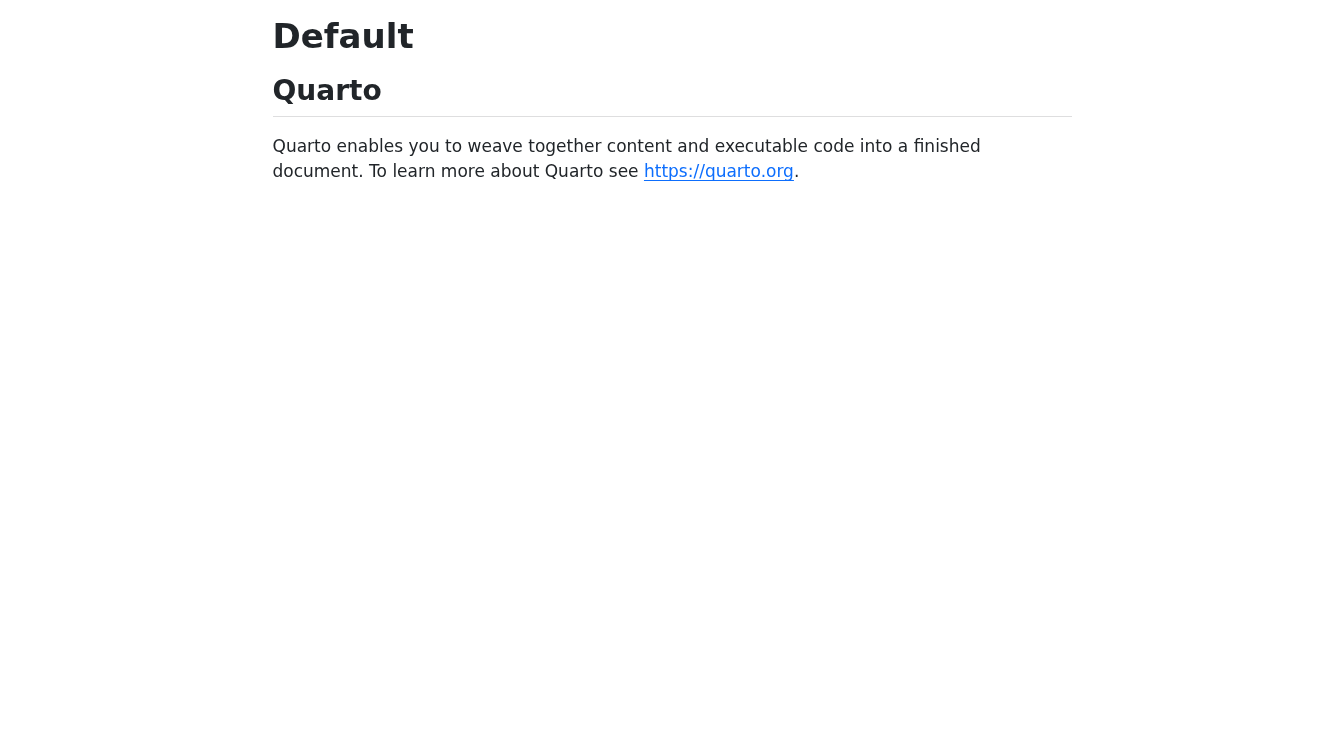
_quarto.yml: project configuration file.
Quarto
project:
title: "Default"Default.qmd: default Quarto document.
Quarto
---
title: "Default"
---

## Quarto

Quarto enables you to weave together content and executable code into a finished document. To learn more about Quarto see <https://quarto.org>.website
Bash
quarto create project website Website_demo/Website
|-- _quarto.yml
|-- about.qmd
|-- index.qmd
`-- styles.css
0 directories, 4 files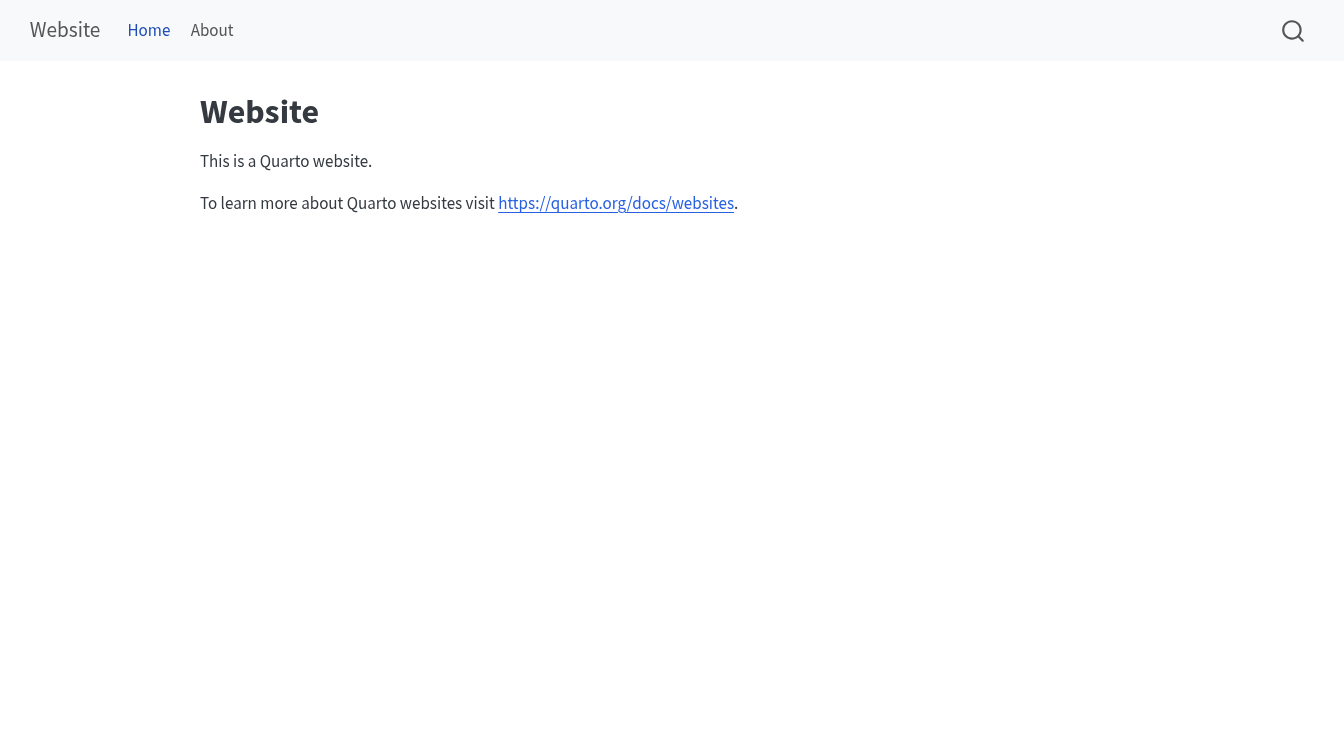
blog
Bash
quarto create project blog Blog_demo/Blog
|-- _quarto.yml
|-- about.qmd
|-- index.qmd
|-- posts
| |-- _metadata.yml
| |-- post-with-code
| | |-- image.jpg
| | `-- index.qmd
| `-- welcome
| |-- index.qmd
| `-- thumbnail.jpg
|-- profile.jpg
`-- styles.css
3 directories, 10 files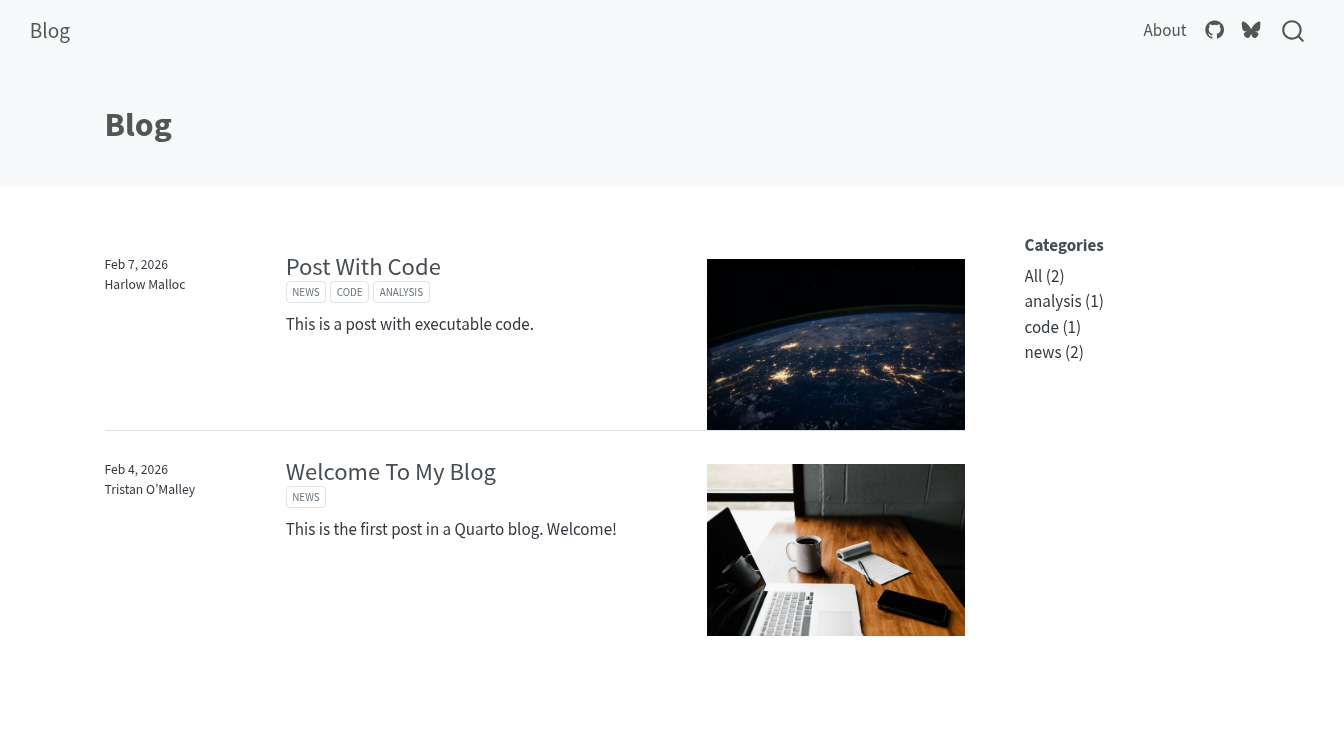
book
Bash
quarto create project book Book_demo/Book
|-- _quarto.yml
|-- cover.png
|-- index.qmd
|-- intro.qmd
|-- references.bib
|-- references.qmd
`-- summary.qmd
0 directories, 7 files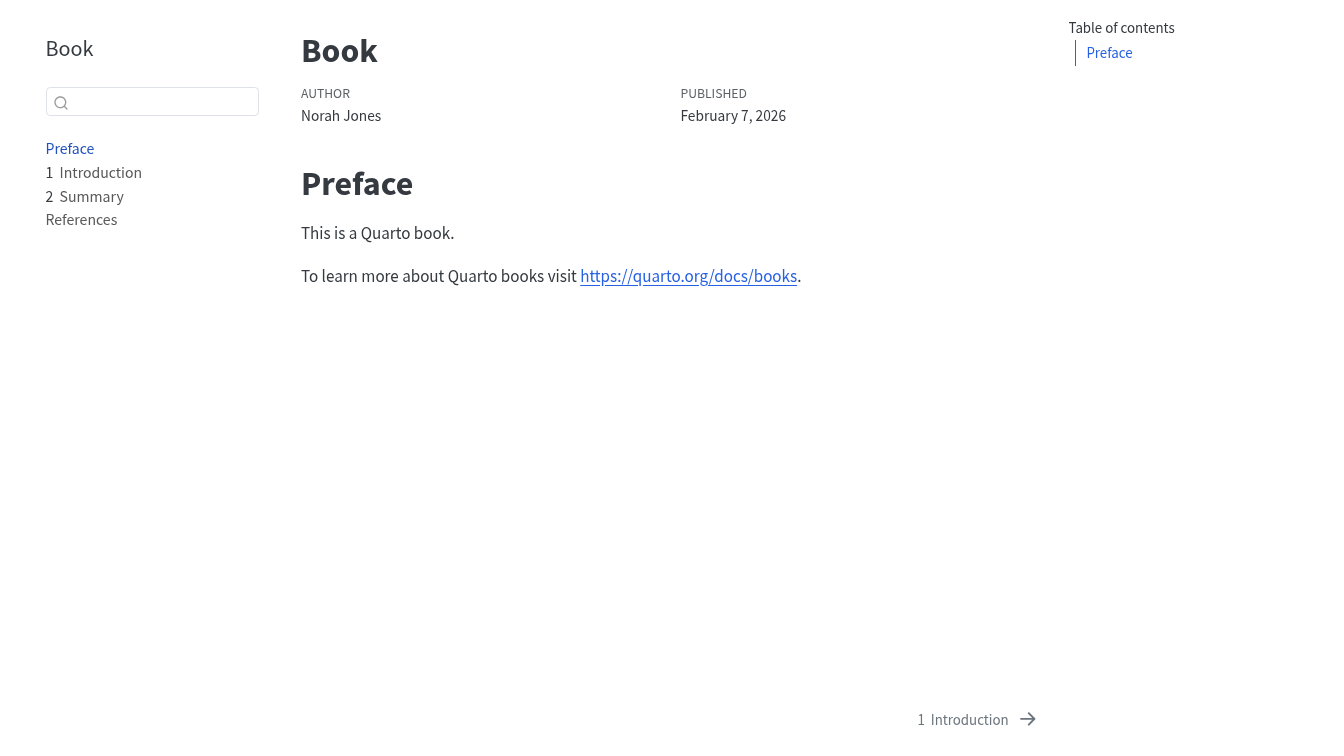
manuscript
Bash
quarto create project manuscript Manuscript_demo/Manuscript
|-- _quarto.yml
|-- index.qmd
`-- references.bib
0 directories, 3 files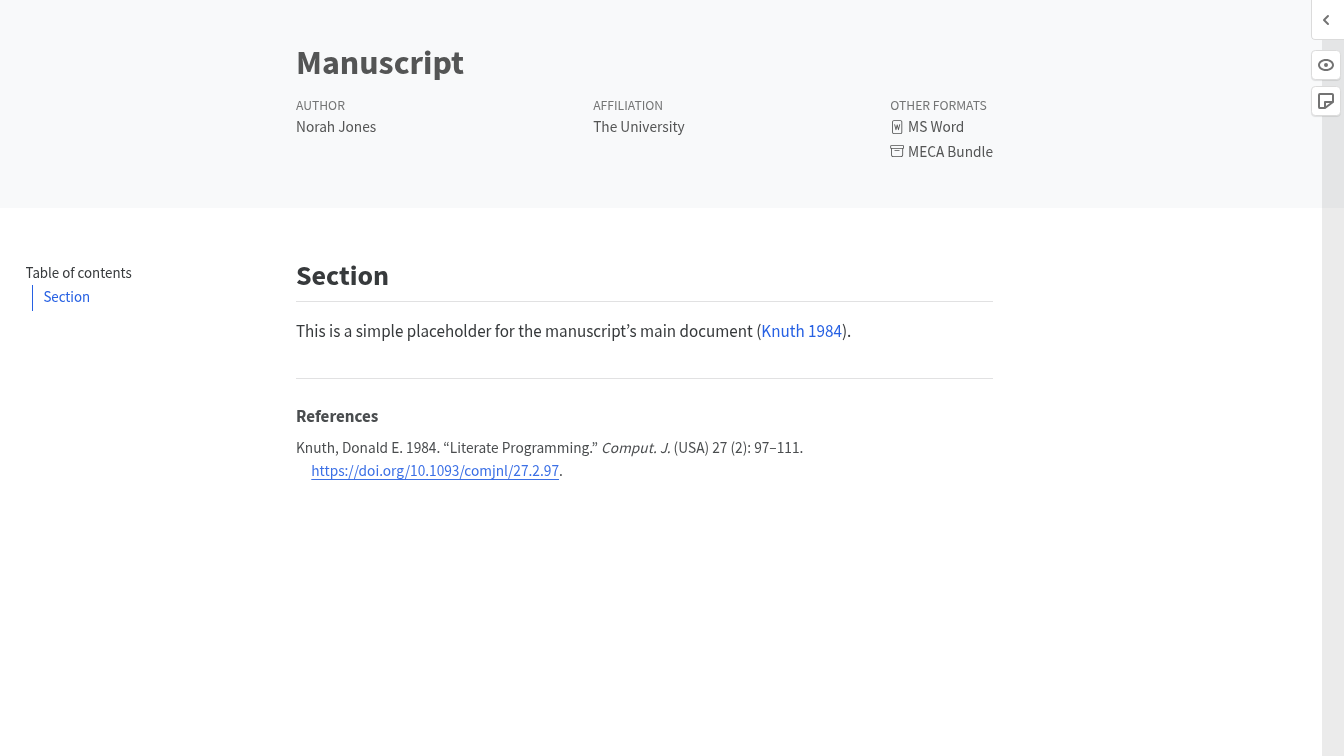
Writing with your favourite editor
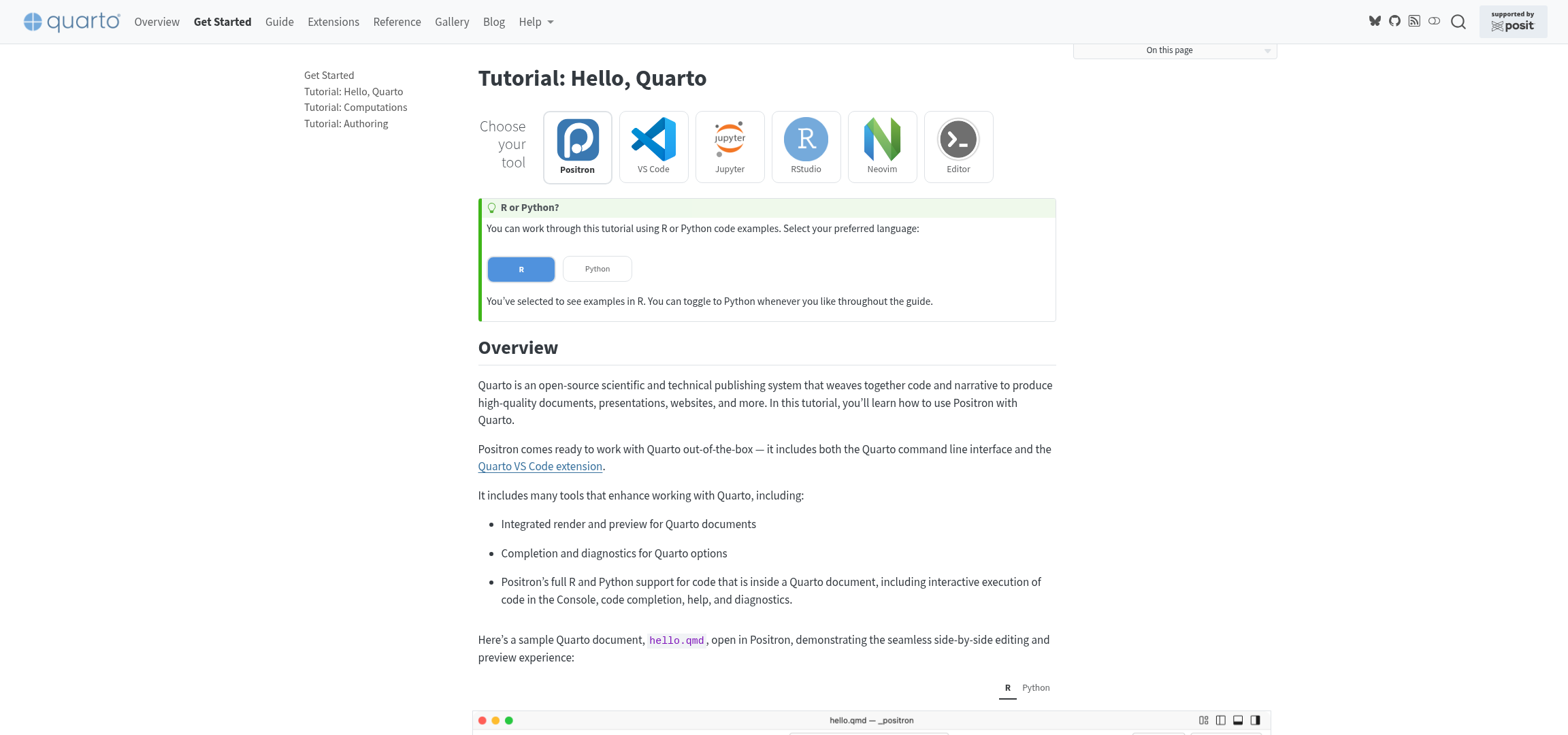
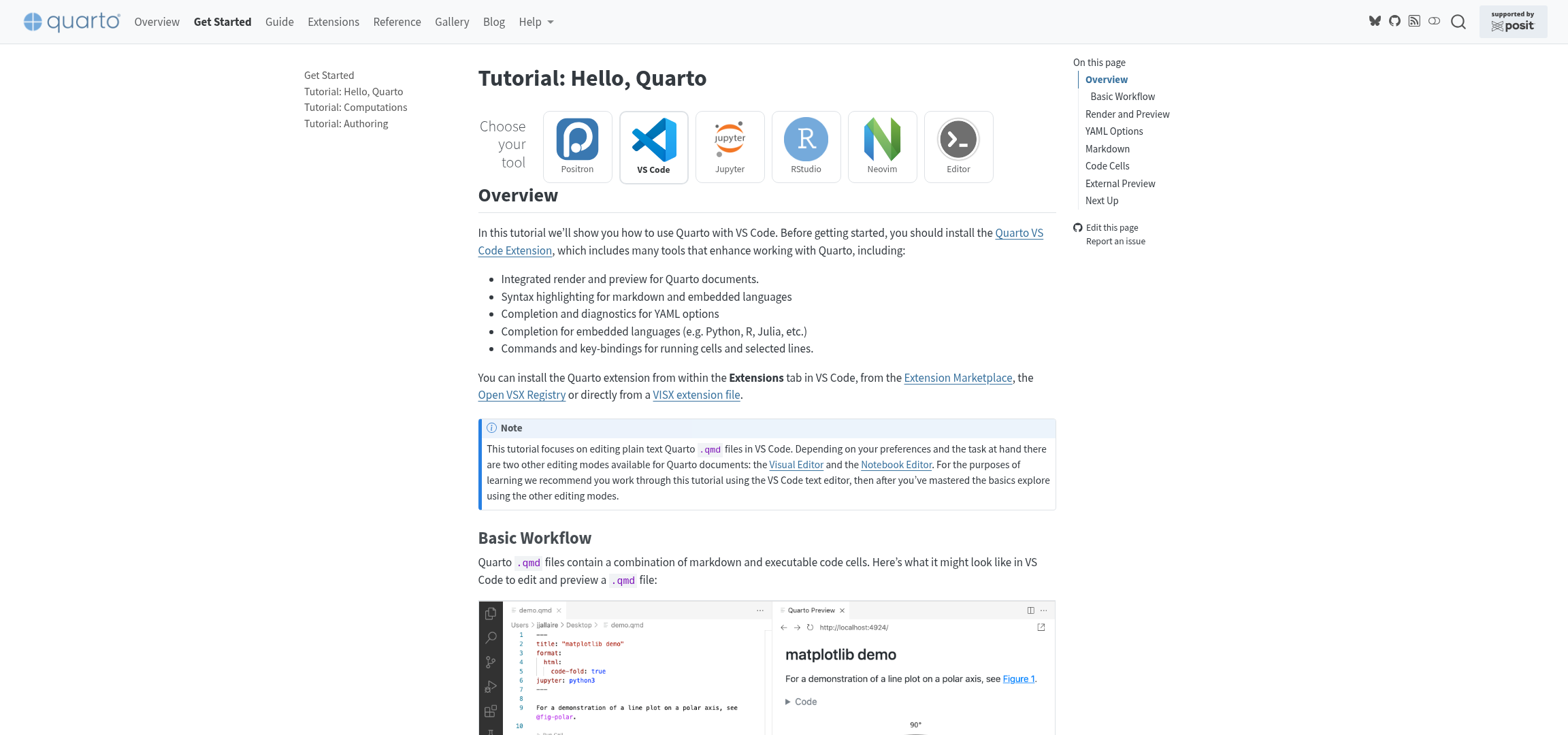
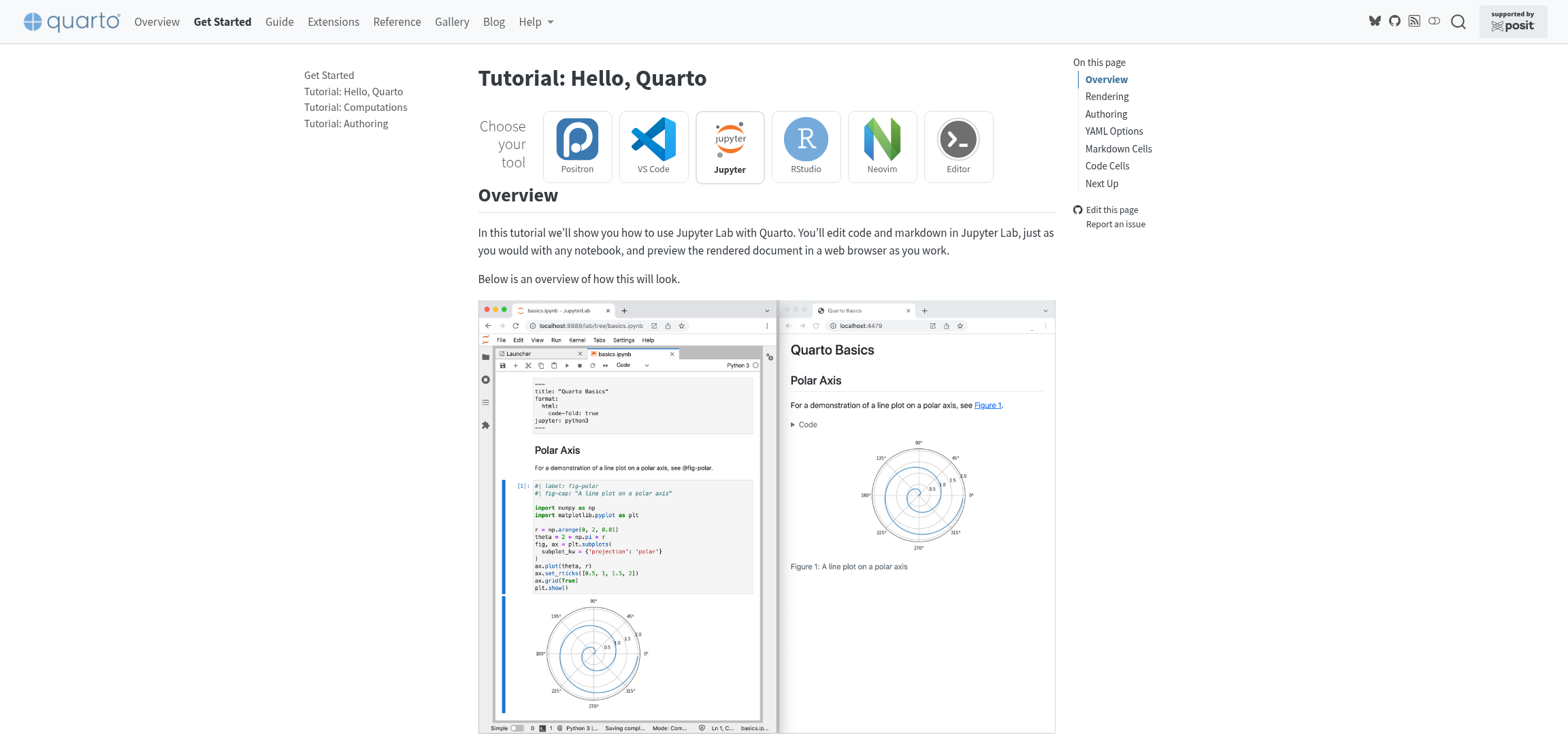
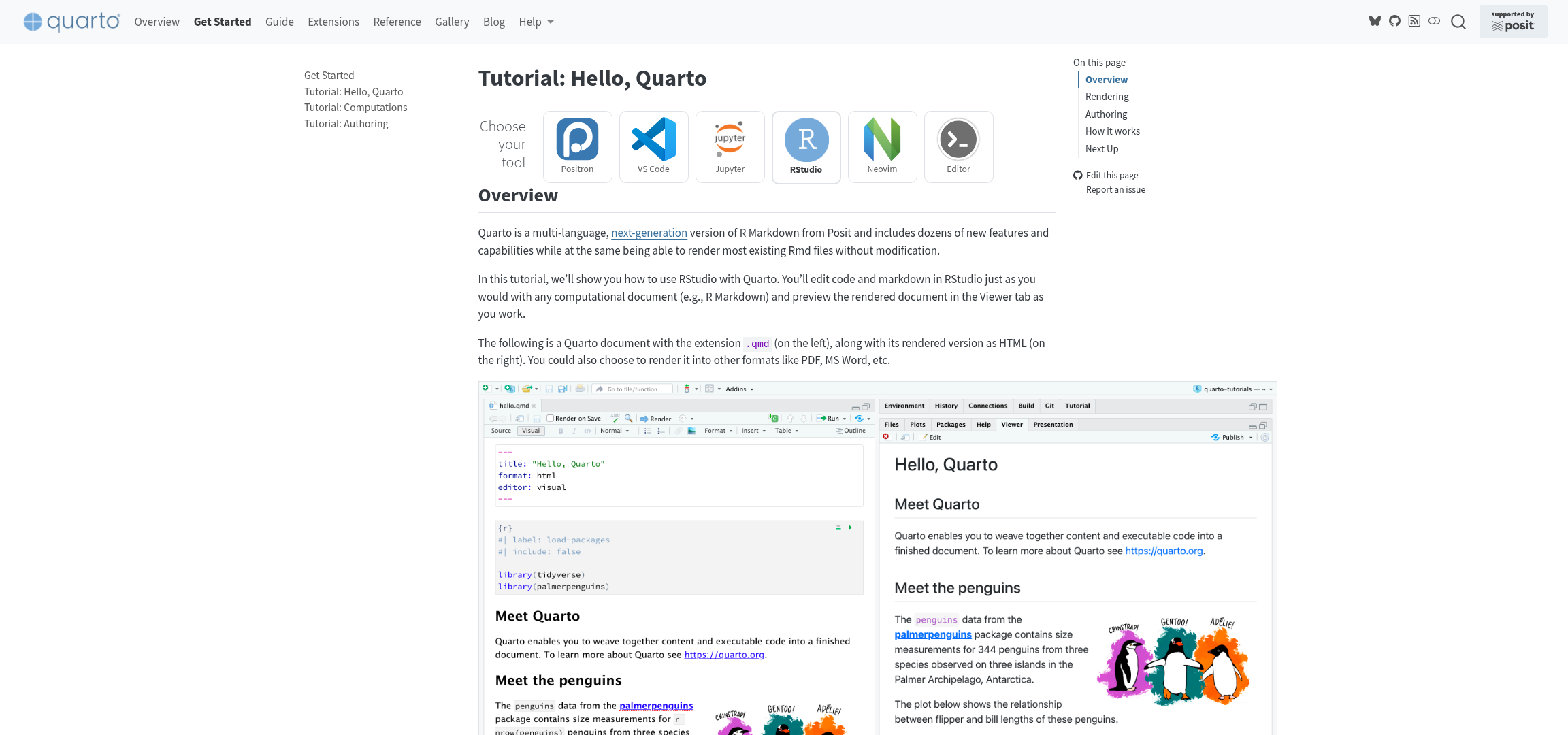
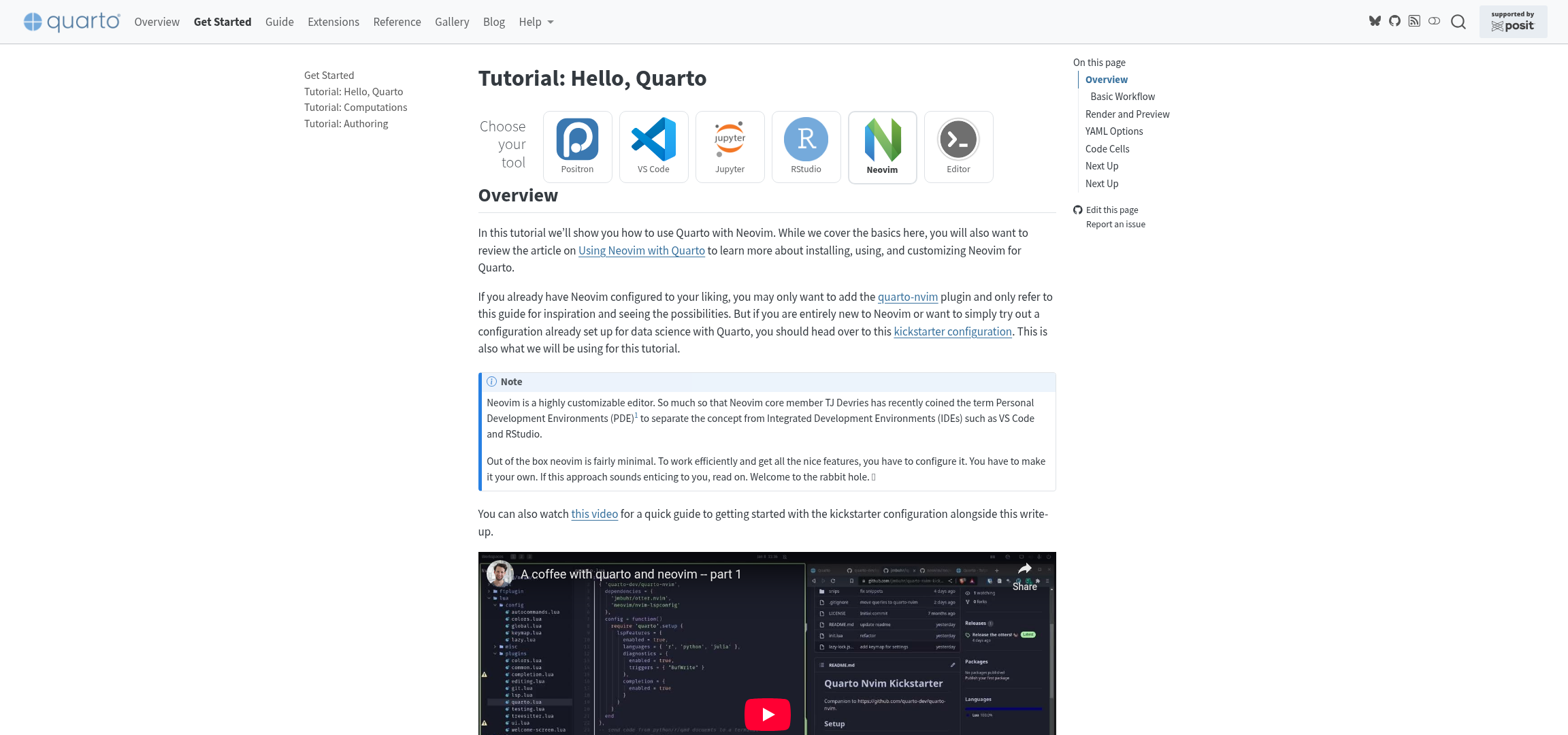
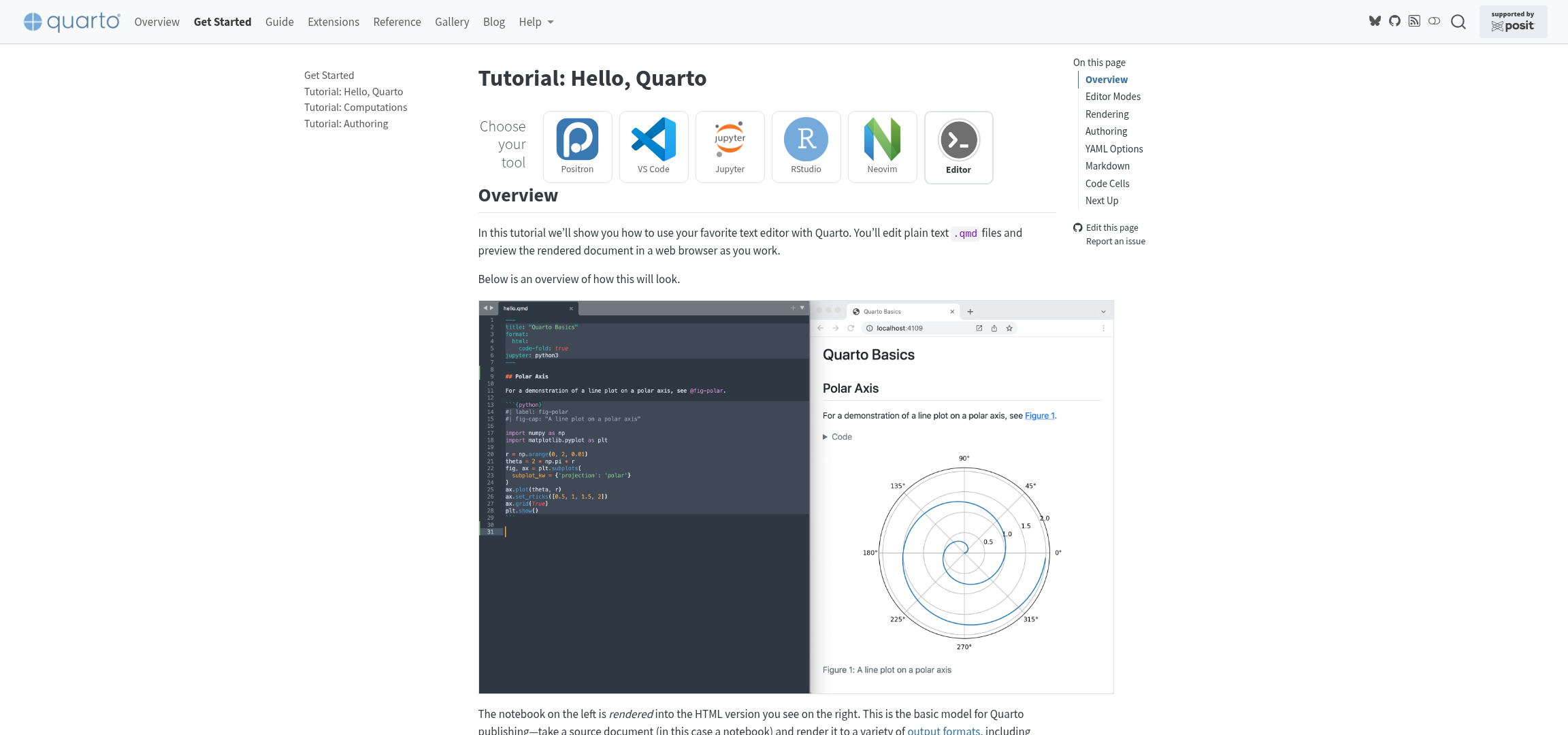
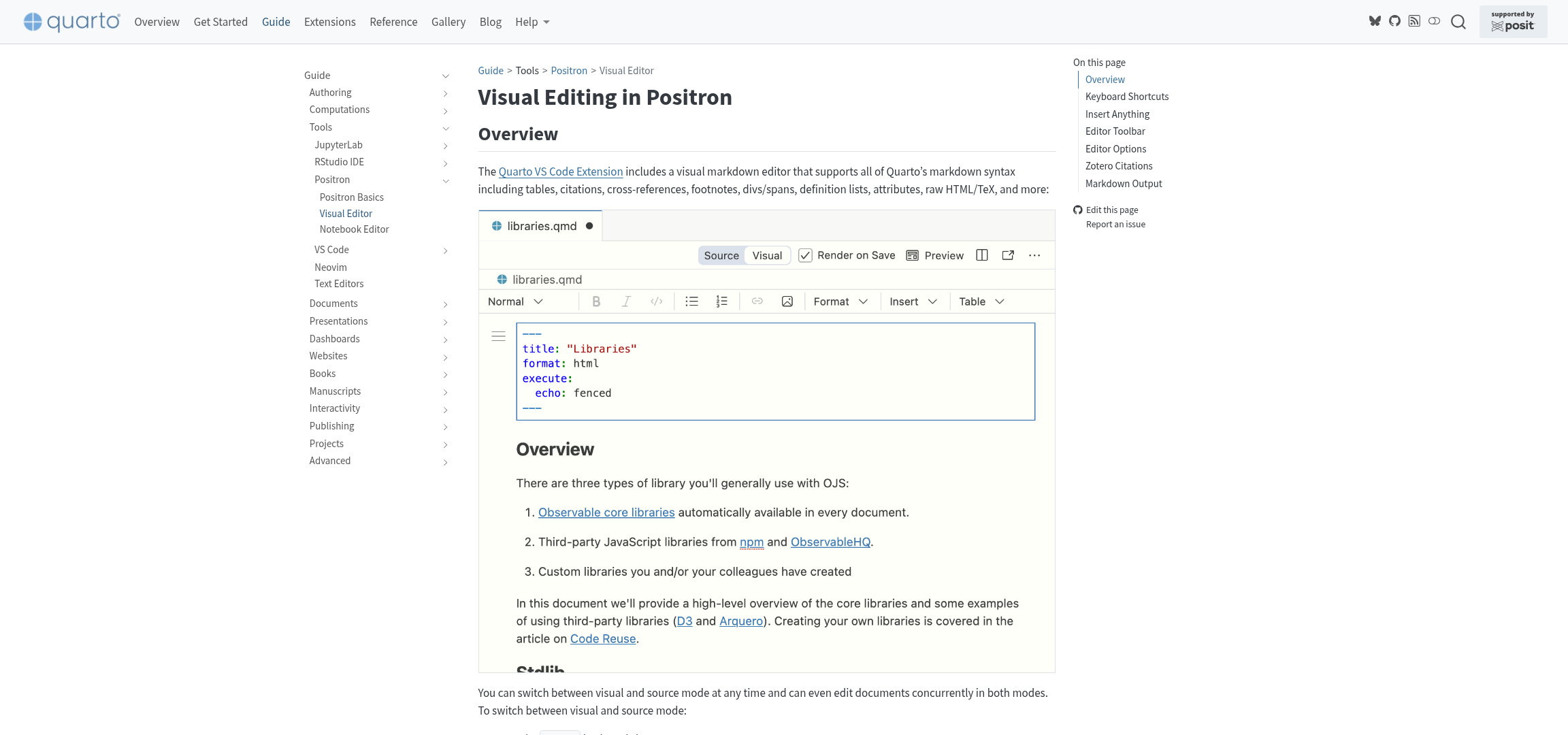
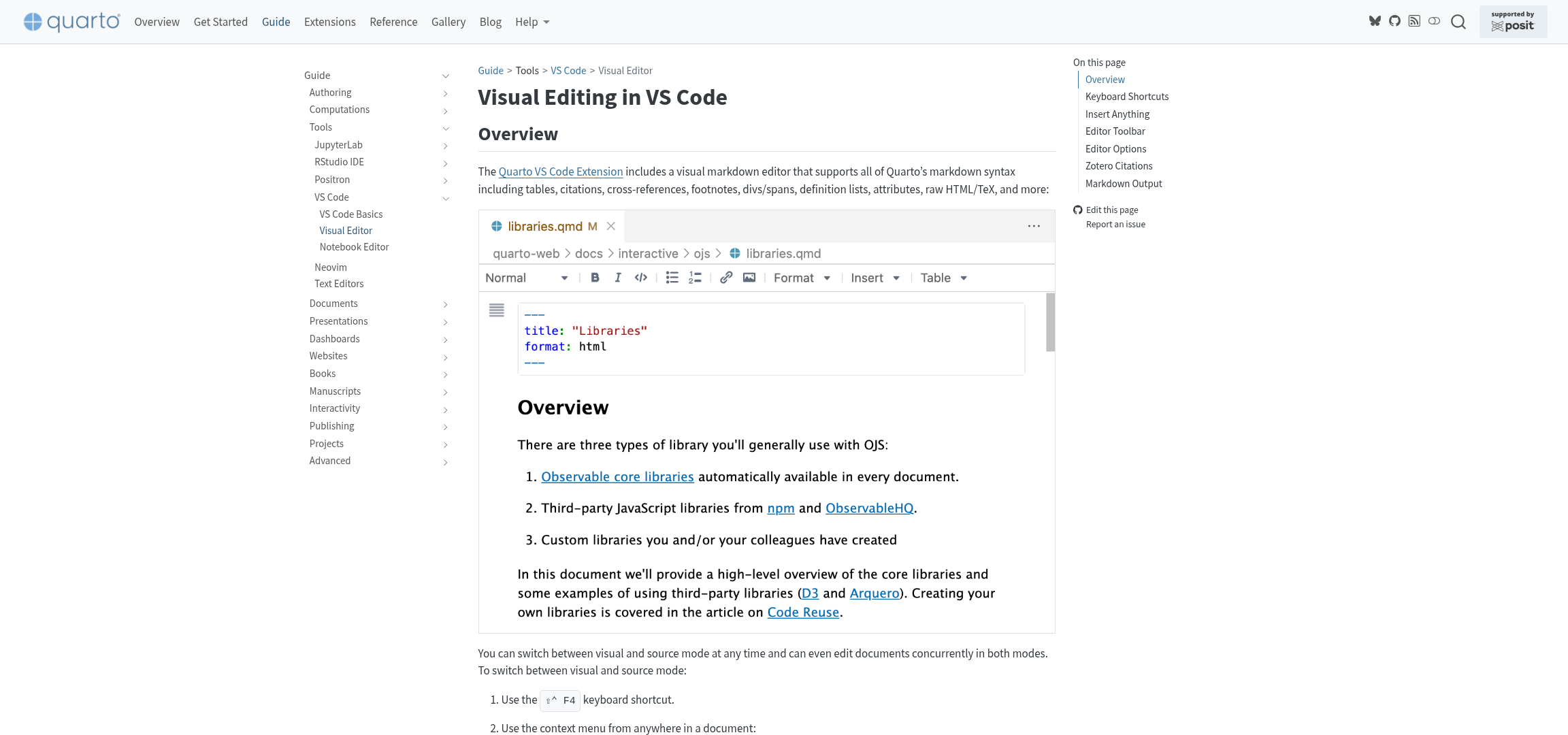
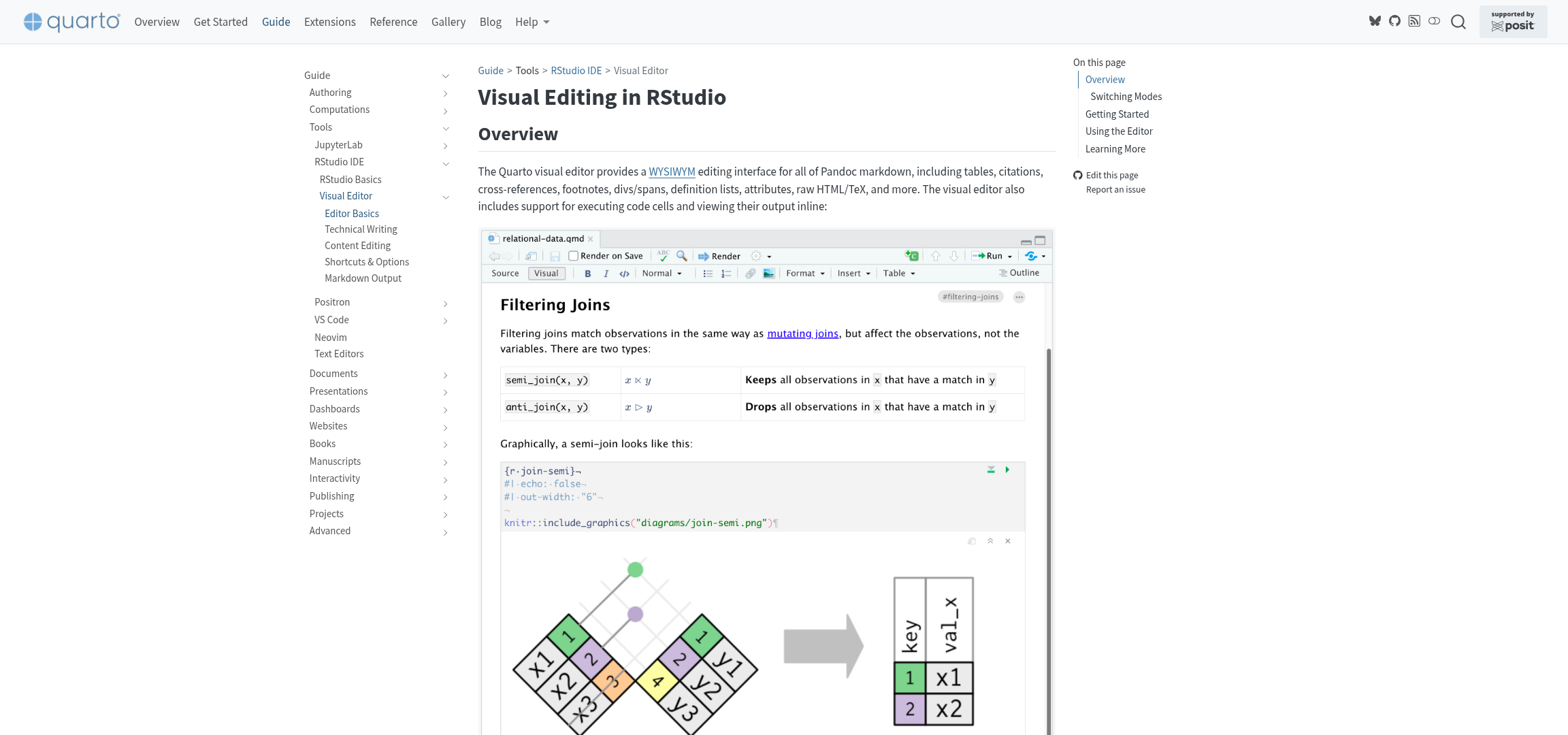
Writing using the Visual Editor
Hands-On Exercise: Creating Your First Quarto Project
Exercise Overview
Objective: Create a personal Quarto document that demonstrates basic features, project setup skills, and IDE integration
Example Code:
bash
tar -xzf "01-exercises.tar.gz" -C "01-introduction-setup"
TipIDE Configuration
Before starting, ensure your development environment is ready:
- VS Code: Install the Quarto extension (
Ctrl/Cmd + Shift + X, search “Quarto”). - Positron: Built-in Quarto support is included (no additional extensions needed).
- Open the Command Palette (
Ctrl/Cmd + Shift + P) and type “Quarto” to verify available commands.
Part 1: Project Creation
Choose Your Adventure: Create a project using the CLI or your IDE.
Explore the project structure in the IDE’s file explorer panel.
Part 2: IDE Features Exploration
Discover your IDE’s Quarto capabilities:
- File recognition: Notice
.qmdfiles have distinctive icons and syntax highlighting. - Document outline: Open a
.qmdfile and check the Outline/Structure panel (shows headings and sections). - Quarto assist panel: Look for a Quarto-specific panel that provides contextual help.
- Command palette power:
Ctrl/Cmd + Shift + P→ type “Quarto” to see all available commands. - Integrated features: Visual editor mode, preview panels, terminal integration.
- Smart editing: Try auto-completion in YAML headers, fenced divs, and code blocks.
Part 3: Document Customisation
Modify the main document (index.qmd) to include:
Update the YAML header with your information:
Code
markdown
---
title: "My Quarto Journey"
author: "Your Name"
date: today
editor: visual  # Enables rich editing features
---
Add content to the document body.
Part 4: Rendering
Try different rendering approaches:
Command Line (classic method):
bash
quarto renderIDE Integration (modern workflow):
- Command Palette (
Ctrl/Cmd + Shift + P) - search for “Quarto Preview” and/or “Quarto Render” commands. - Use keyboard shortcut if you configured one
- Notice IDE-specific feedback and error handling
- Command Palette (
Success Criteria
✅ You’ve successfully completed the exercise if you can:
- Configure your IDE for optimal Quarto development.
- Create a new Quarto project using the CLI or your IDE.
- Navigate project files efficiently in your IDE.
- Utilise IDE features like syntax highlighting and command palette.
- Modify documents with IDE assistance (auto-completion, outline view).
- Render documents using both CLI and IDE methods.
Reuse
Copyright
© 2026 Mickaël CANOUIL