Explorer View
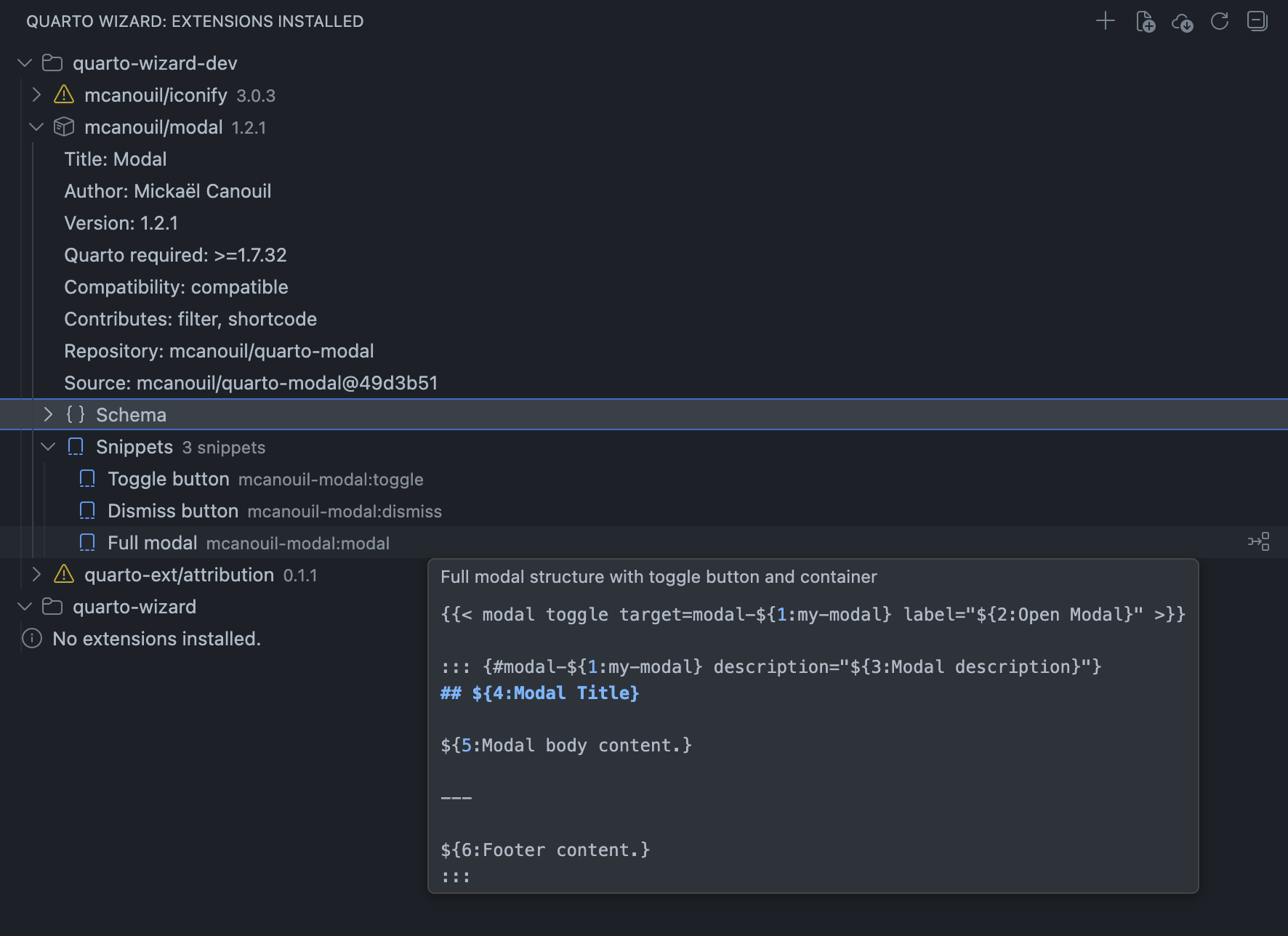
The Quarto Wizard Explorer View provides a dedicated interface for managing installed Quarto extensions across your workspace folders, including extension metadata, compatibility, schema contributions, and snippets.
Opening the Explorer View
There are two ways to open the Explorer View:
- Click the Quarto Wizard icon in the Activity Bar (sidebar).
- Use the Command Palette:
Quarto Wizard: Focus on Extensions Installed View.
Interface Overview
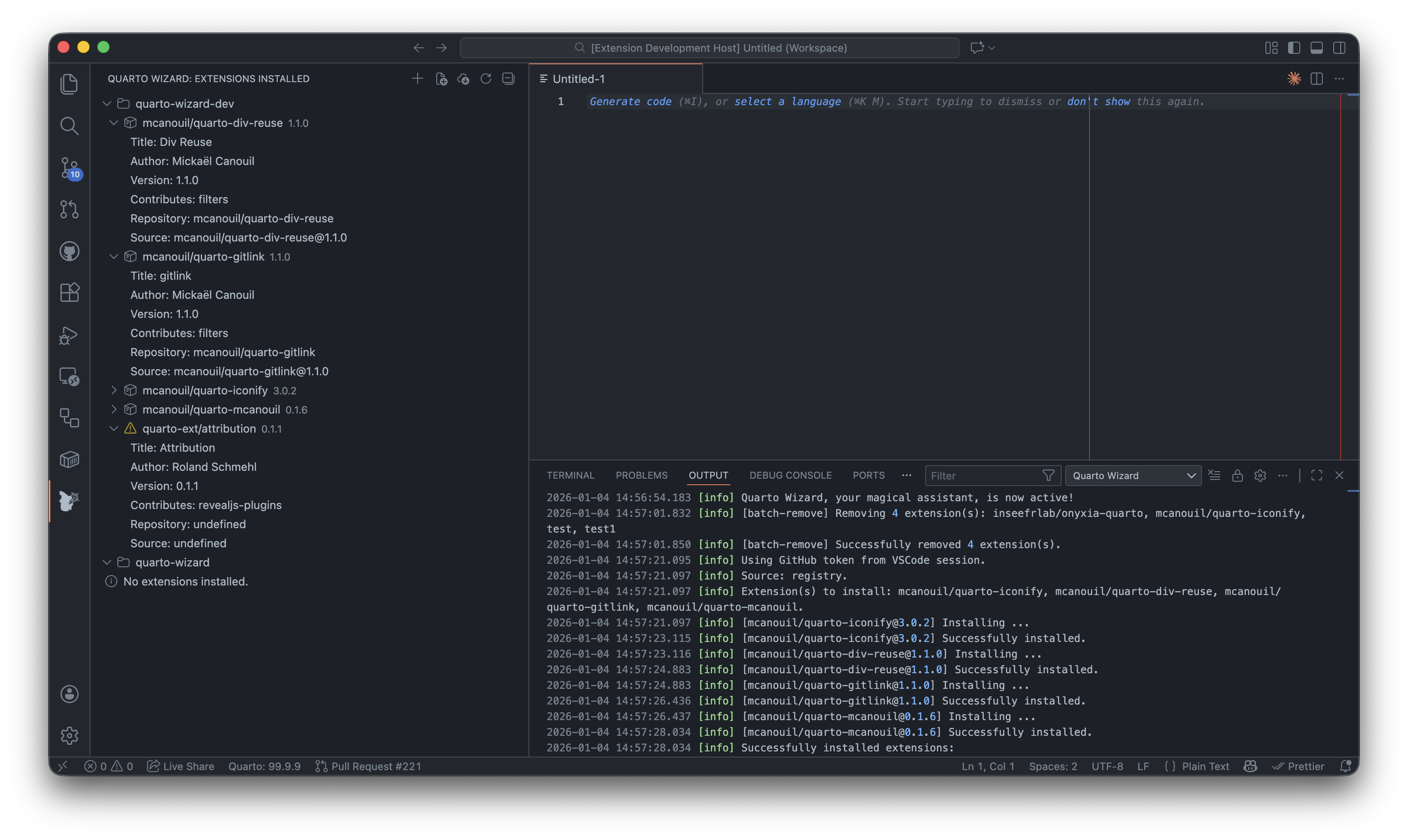
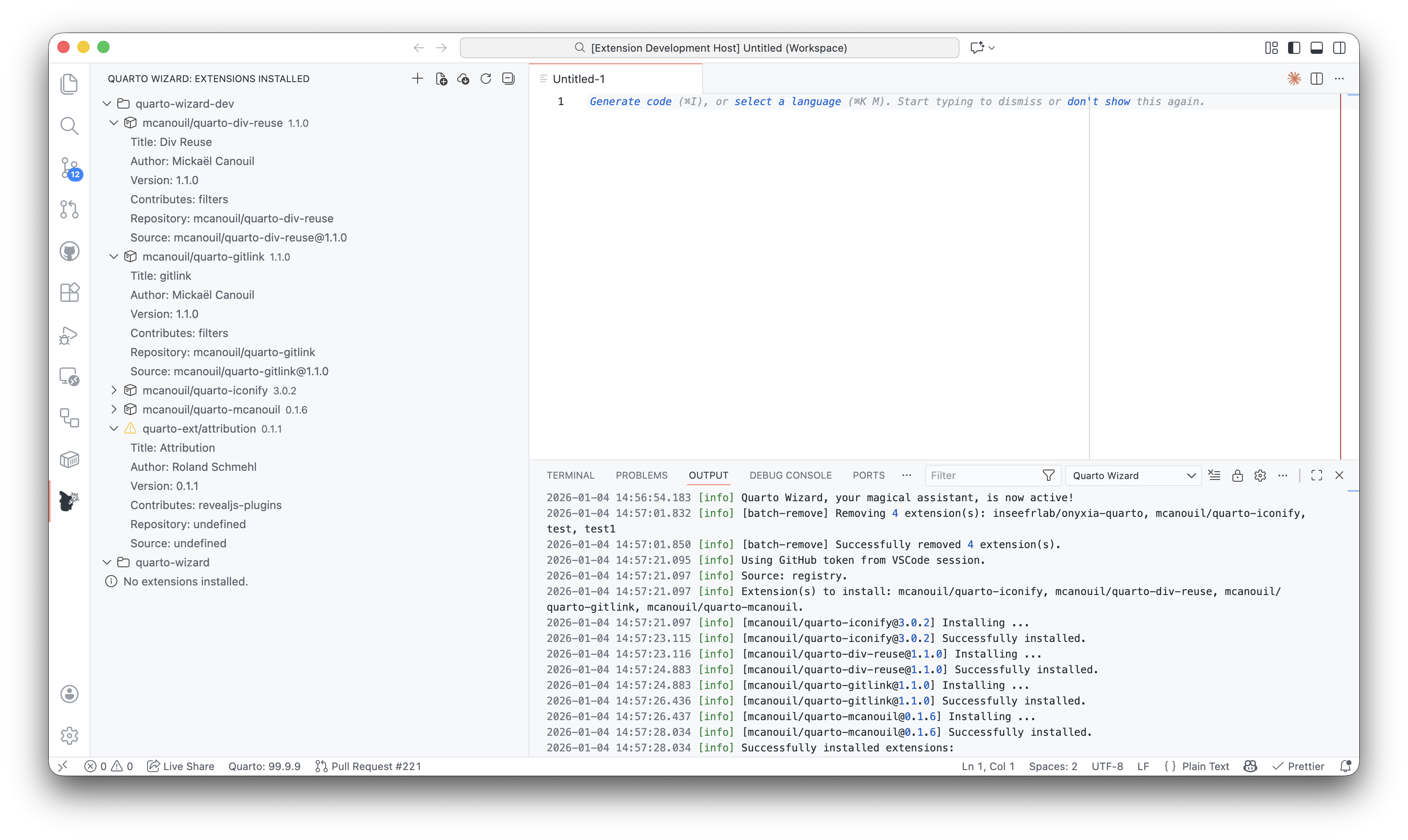
The Explorer View displays:
- Project roots: Each detected Quarto project root that can contain extensions, starting with the workspace folder itself.
- Installed extensions: Extensions found in the
_extensionsdirectory. - Extension details: Metadata rows such as title, author, version,
quarto-required, compatibility, contributes (filters, shortcodes, formats, etc.), repository, and source. - Schema contributions: A
Schemanode when the extension provides a valid_schema.yml,_schema.yaml, or_schema.json. - Extension snippets: A
Snippetsnode when snippets are declared via_snippets.json. - Version information: Current version and available updates.
- Action buttons: Quick access to common operations.
When the workspace folder itself holds at least one installed extension in _extensions/, it is the only root shown, and no subfolder is listed as a separate target. Paths matched by the workspace folder’s .quartoignore are never detected as roots either, so listing docs there keeps a documentation website out of the view. See Auto Project Detection for the scanning modes.
Extension Status Indicators
Extensions may display different indicators:
- Update available: A cloud icon indicates a newer version is available.
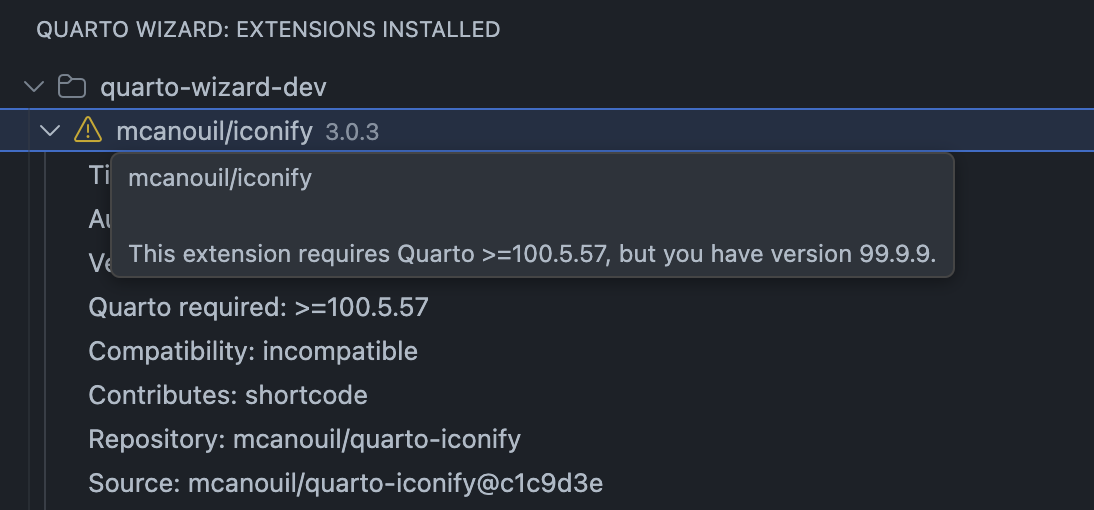
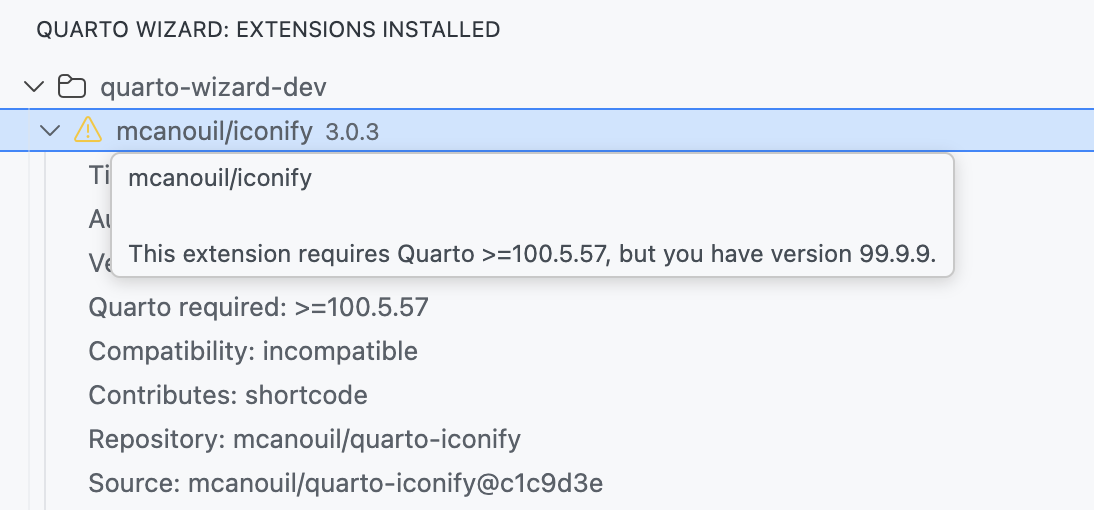
- Warning state: A warning icon indicates an
_extension.ymlparse error, missing source information, or an incompatiblequarto-requiredconstraint.
Compatibility Status
When an extension is expanded, the details include:
- Quarto required: The extension
quarto-requiredconstraint from_extension.yml. - Compatibility: One of
compatible,incompatible,not specified, orunknown (Quarto unavailable).
If compatibility is incompatible, Quarto Wizard adds a warning on the extension item and details in the tooltip.
Schema and Snippet Nodes
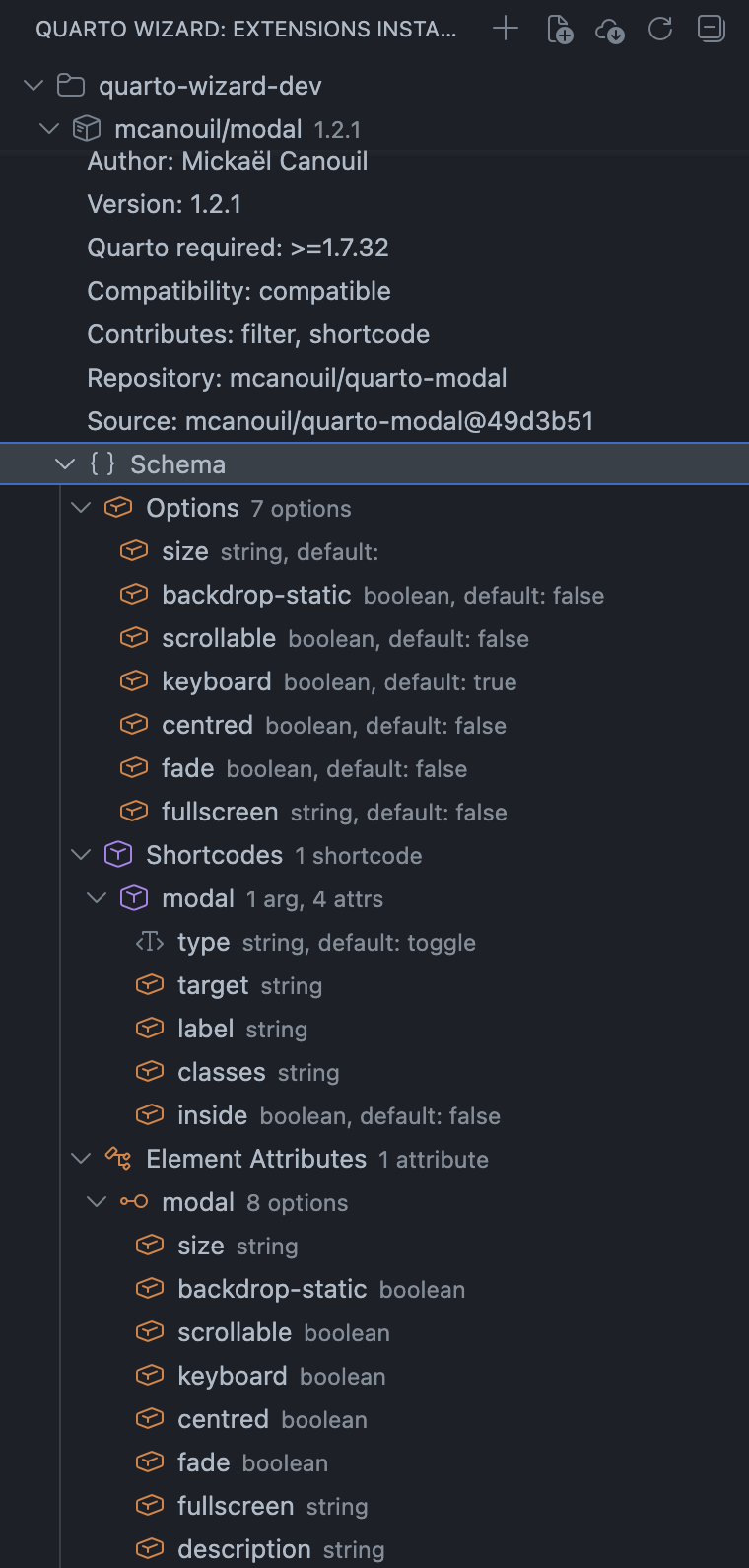
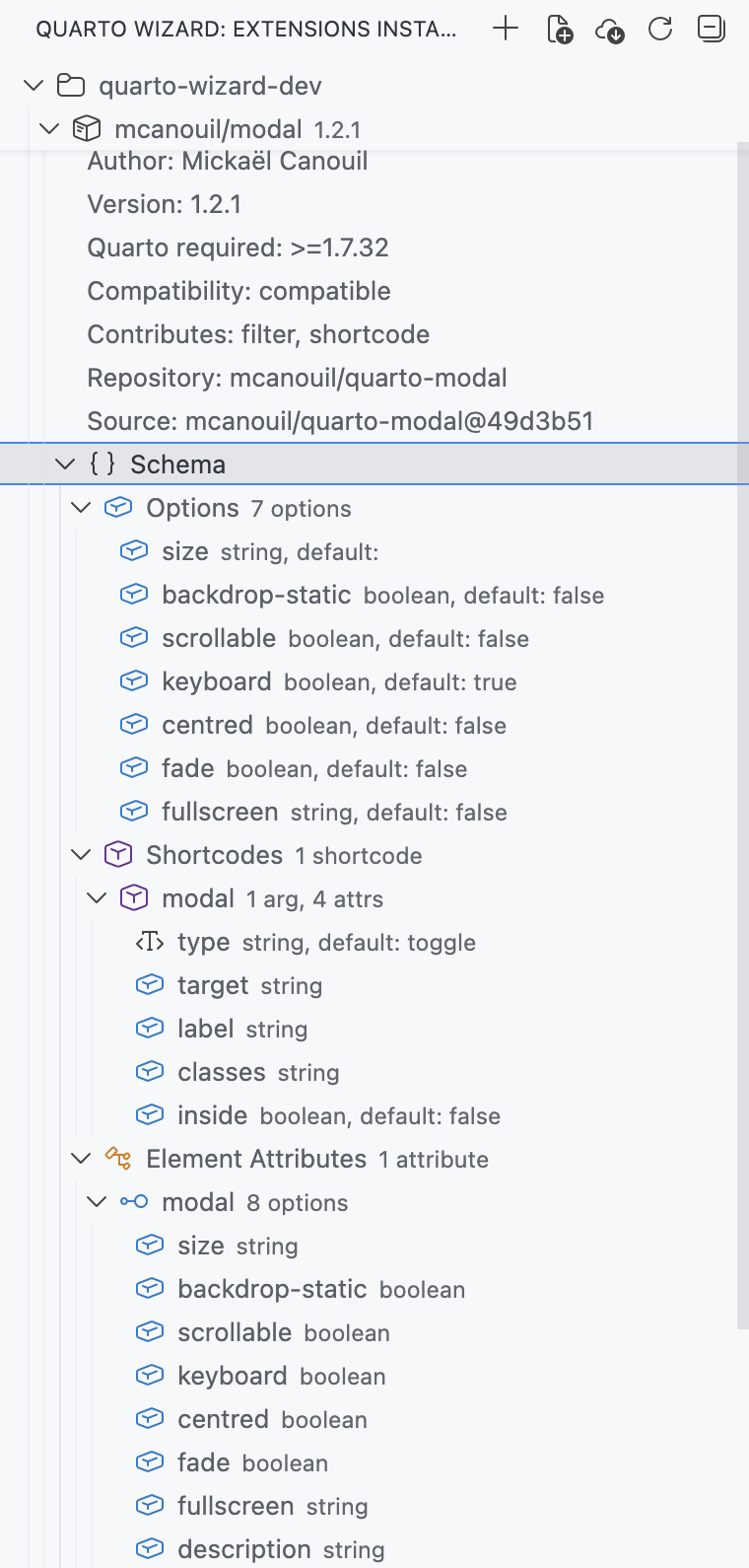
If an extension includes schema contributions, the Explorer View shows a Schema node with grouped sections:
- Options.
- Shortcodes.
- Formats.
- Projects.
- Element Attributes.
If the schema file cannot be parsed, the tree displays Schema (invalid) with a warning.
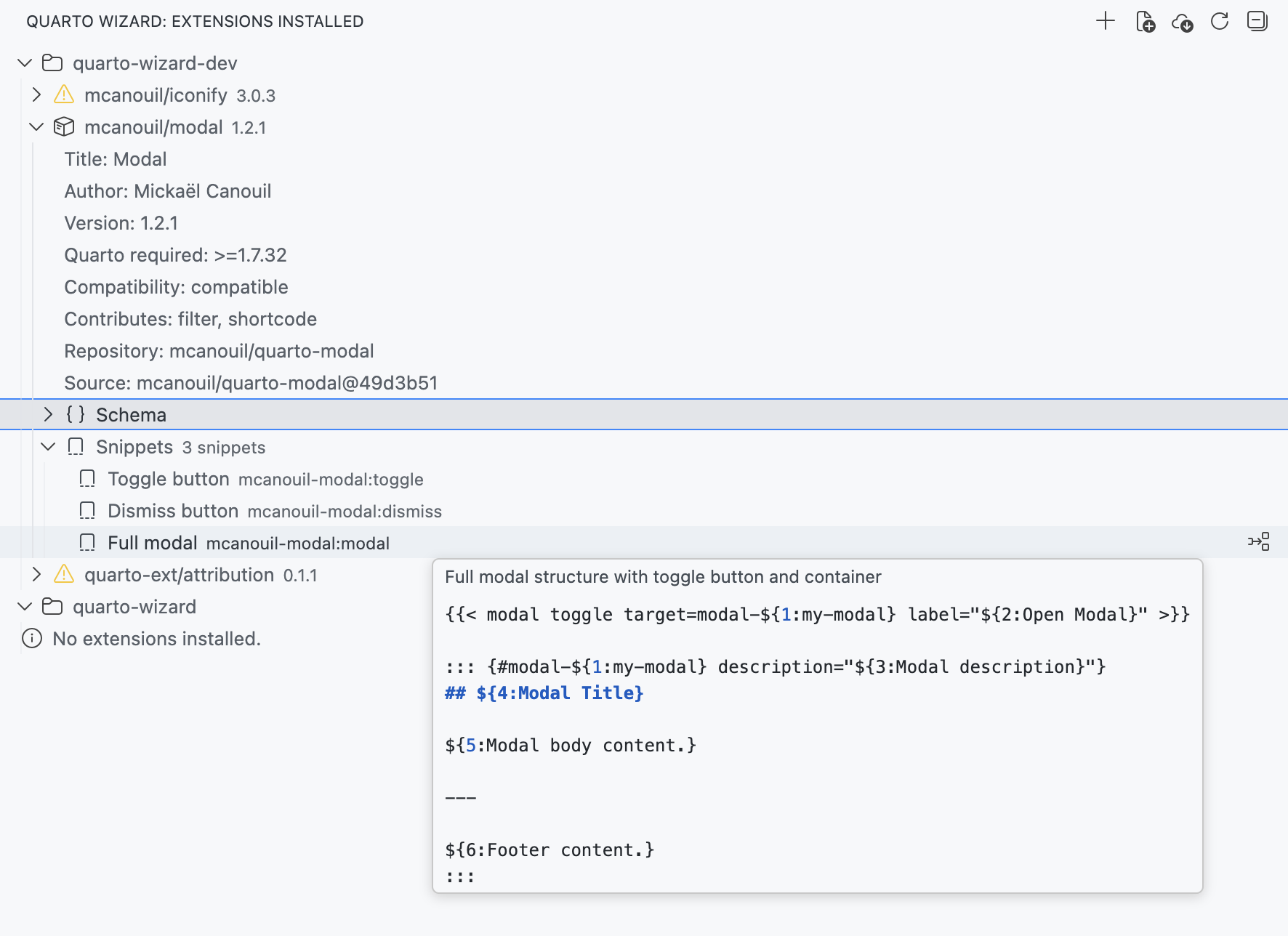
If an extension includes snippets, the Explorer View shows a Snippets node with one item per snippet definition. Each snippet entry displays its namespace-qualified trigger prefix. Hovering over a snippet item shows a tooltip with its description and a preview of its content. Selecting a snippet inserts its content into the active editor. If no editor is open, a prompt asks you to open a file first. If snippets cannot be parsed, the tree displays Snippets (invalid) with a warning.
Available Actions
Workspace Folder Actions
For each workspace folder, you can:
- Install Extensions: Add new extensions to the folder.
- Use Template: Install a template and copy its files.
- Remove Multiple: Select and remove multiple extensions at once.
Extension Actions
For each installed extension, you can:
- Update: Download and install the latest version (if outdated).
- Remove: Delete the extension from the
_extensionsdirectory. - Open Source: View the extension’s GitHub repository (if source is available).
- Reveal in Explorer View: Open the extension folder in the file explorer.
Snippet Actions
For each snippet entry shown under an extension, you can:
- Insert Snippet: Insert the selected snippet at the cursor position in the active editor.
Toolbar Actions
The view toolbar provides:
- Install Extensions: Open the extension browser.
- Use Template: Open the template browser.
- Update All: Update all outdated extensions in the workspace.
- Refresh: Reload the list of installed extensions.
The tree updates automatically after installations, updates, removals, and local file changes. Use Refresh when you need to force a manual reload.
Update Detection
Quarto Wizard can detect when updates are available for your installed extensions.
Extensions can only be updated if they were installed by Quarto Wizard or have source: <owner>/<repository> in their _extension.yml file. You can manually add the source field to enable update detection.
Quarto Wizard records source and source-type by editing those two lines only. The rest of _extension.yml is left byte for byte identical, so comments, key order, and quoting written by the extension author are preserved.
Visibility
The Explorer View panel is only visible when at least one workspace folder is open. If no extensions are installed, the view displays a welcome message with links to install extensions, use a template, or browse the extensions directory.
Context Menu
Right-click on an extension to access additional options:
- Update (if available).
- Remove.
- Open Source (if source is available).
- Reveal in Explorer View.
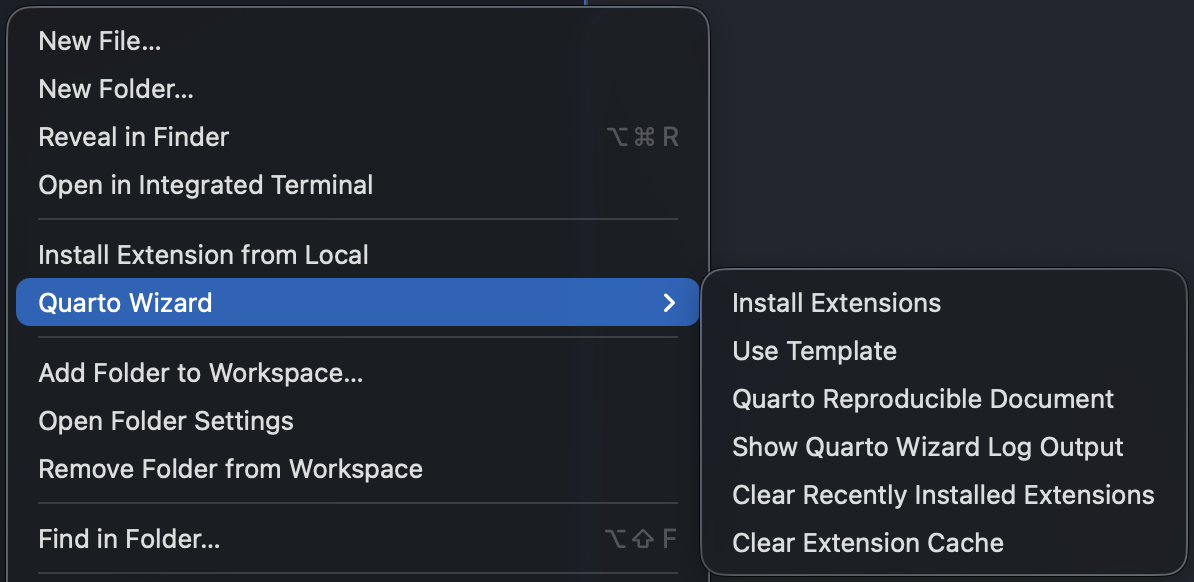
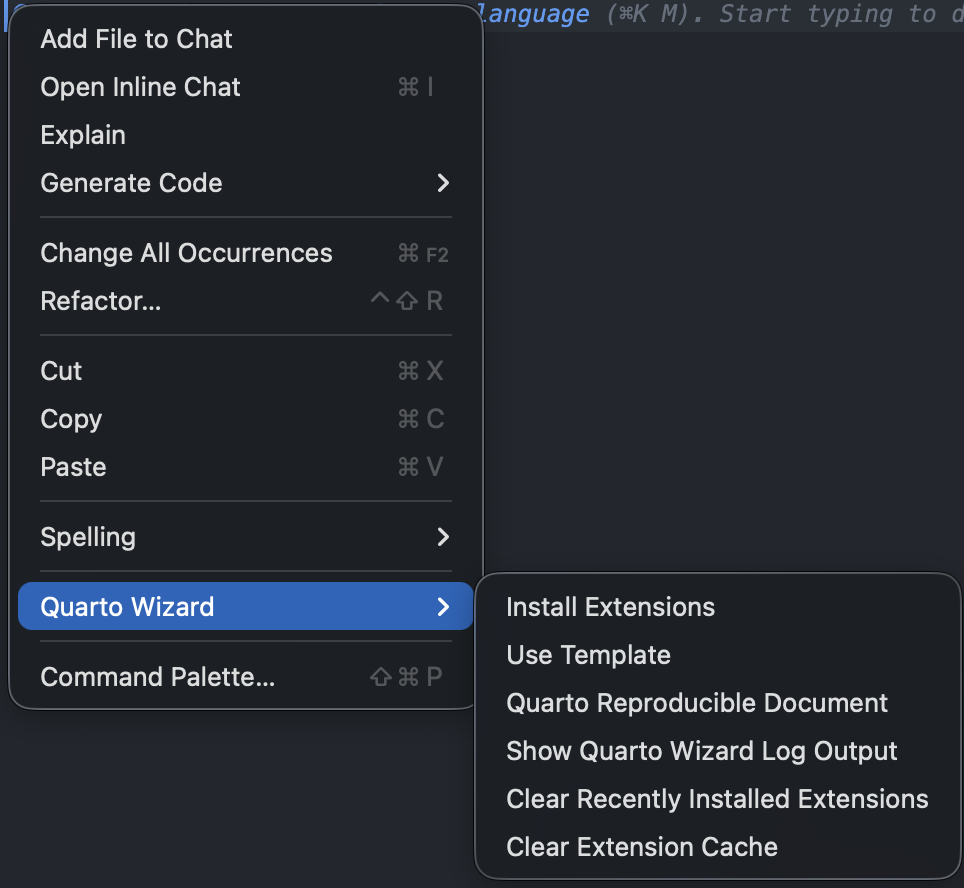
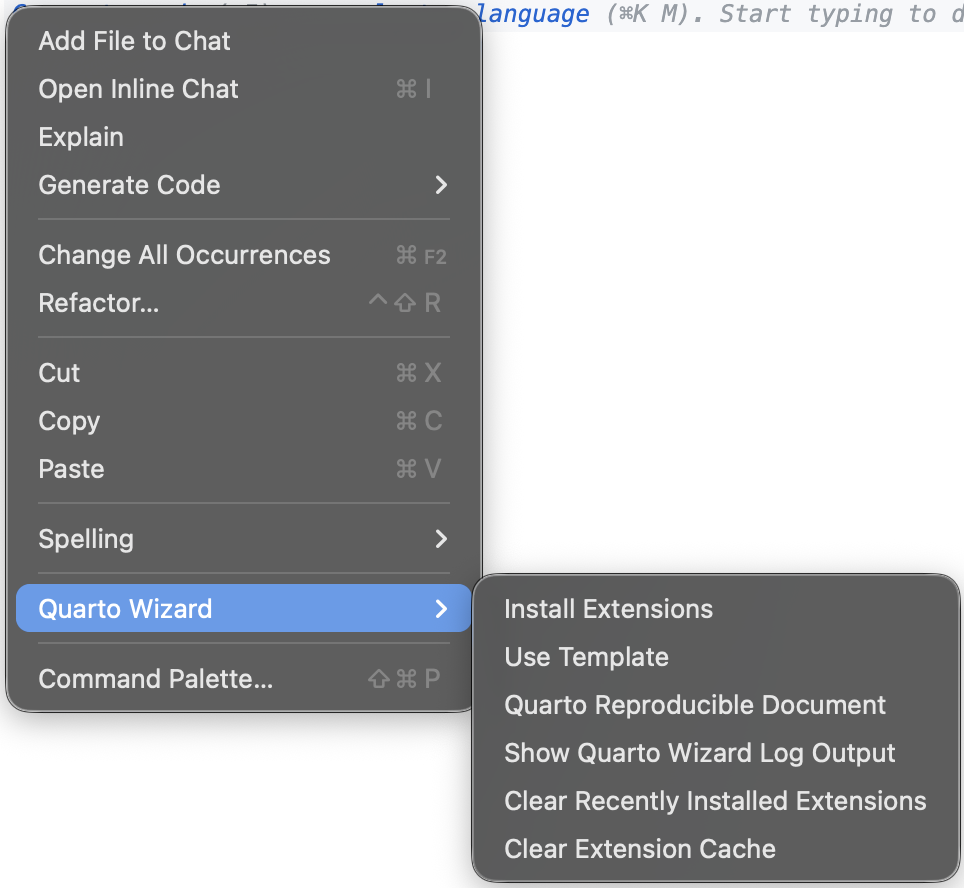
You can also access Quarto Wizard commands from the editor context menu: