Installation
There are several ways to install Quarto Wizard in Visual Studio Code or Positron.
VS Code Marketplace / Open VSX
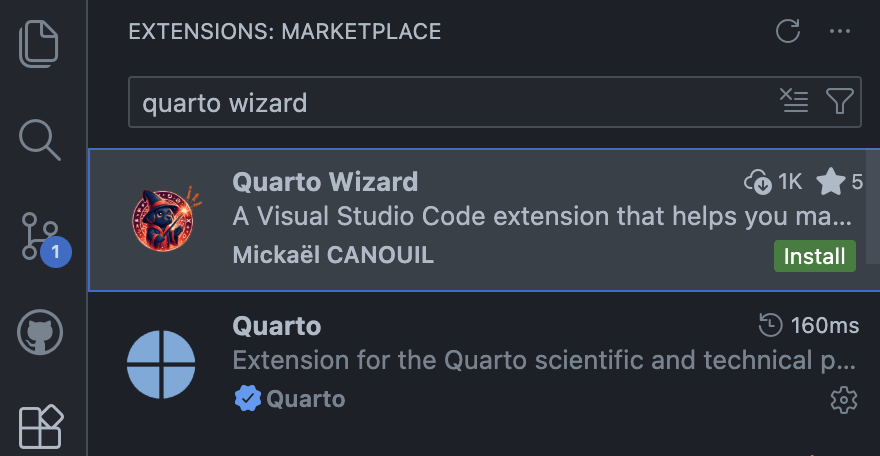
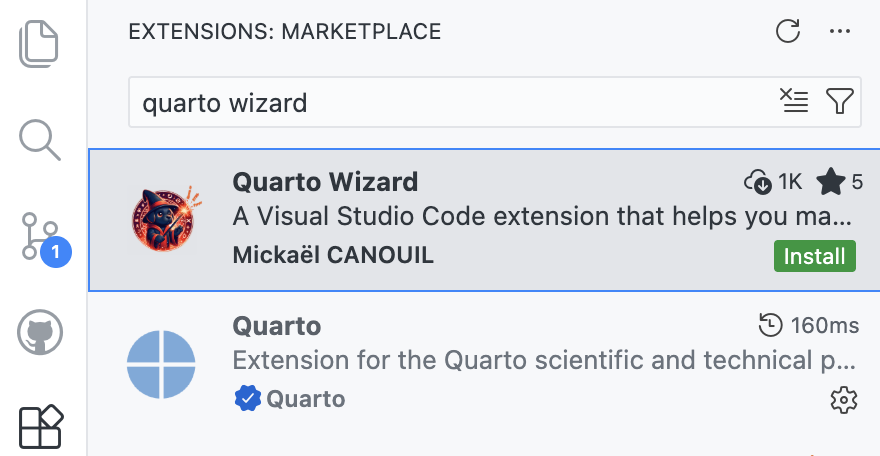
The easiest way to install Quarto Wizard:
- Open Visual Studio Code or Positron.
- Go to the Extensions view (
Ctrl+Shift+XorCmd+Shift+Xon macOS). - Search for “Quarto Wizard”.
- Click Install on the extension.
Command Line
You can also install via the command line:
Terminal
code --install-extension mcanouil.quarto-wizardVia VS Code Marketplace.
Terminal
positron --install-extension mcanouil.quarto-wizardVia Open VSX.
Manual Installation
For manual installation from a GitHub release:
- Download the latest
.vsixfile from the GitHub Releases. - In VS Code, open the Command Palette (
Ctrl+Shift+PorCmd+Shift+P). - Run
Extensions: Install from VSIX.... - Select the downloaded
.vsixfile.
Using GitHub CLI
You can download, verify attestation, and install in one go using the GitHub CLI.
Terminal
gh release download "3.6.3" --repo mcanouil/quarto-wizard --pattern "*.vsix"
gh attestation verify "quarto-wizard-3.6.3.vsix" --repo mcanouil/quarto-wizard
code --install-extension mcanouil.quarto-wizard
Via GitHub Release.
Terminal
gh release download "3.6.3" --repo mcanouil/quarto-wizard --pattern "*.vsix"
gh attestation verify "quarto-wizard-3.6.3.vsix" --repo mcanouil/quarto-wizard
positron --install-extension mcanouil.quarto-wizard
Via GitHub Release.
Verifying Installation
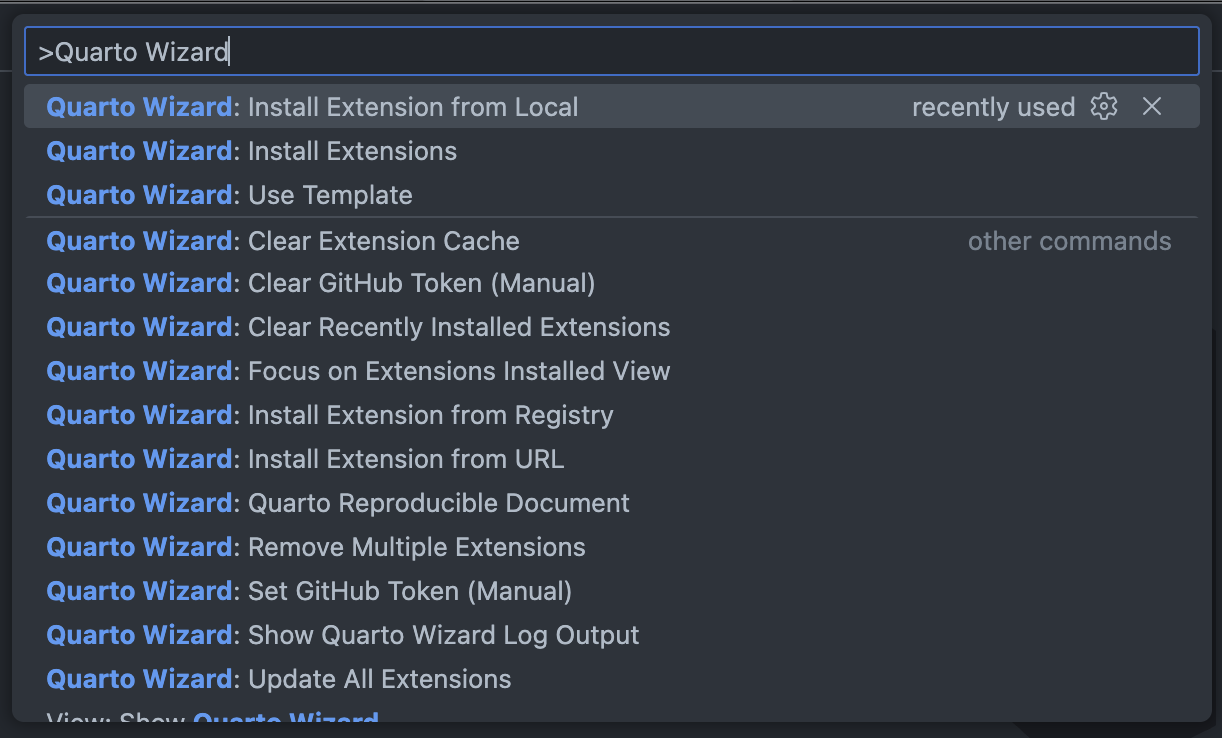
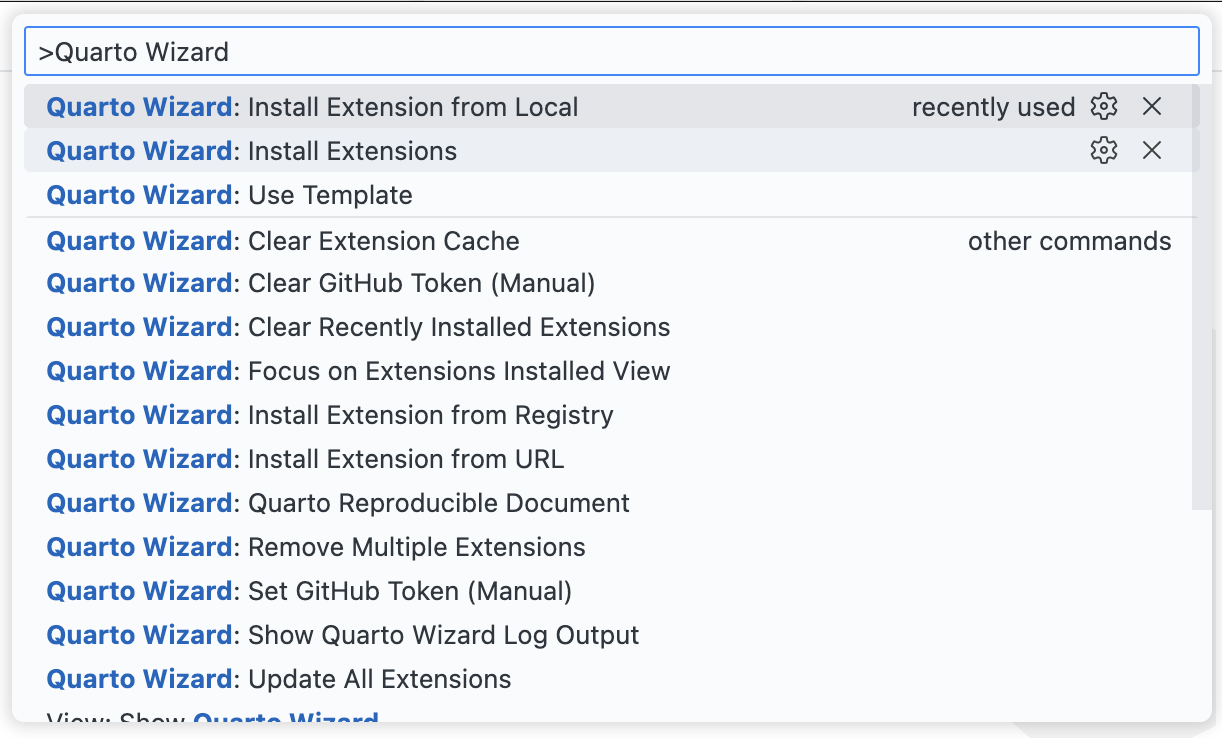
After installation, you can verify it worked by:
- Opening the Command Palette (
Ctrl+Shift+PorCmd+Shift+P). - Typing “Quarto Wizard”.
- You should see the available Quarto Wizard commands.
System Requirements
Visual Studio Code
- VS Code version 1.96.0 or later.
- Alternatively, Positron IDE is also supported.
Internet Connection
An active internet connection is required for:
- Fetching the extension registry.
- Downloading and installing extensions from GitHub.
- Checking for extension updates.
Optional: GitHub Authentication
For accessing private repositories or avoiding rate limits, you can configure GitHub authentication:
- Open the Command Palette (
Ctrl+Shift+PorCmd+Shift+P). - Run
Quarto Wizard: Set GitHub Token (Manual). - Enter your GitHub personal access token.


Alternatively, Quarto Wizard can use:
- Environment variables (
GITHUB_TOKENorQUARTO_WIZARD_TOKEN). - VS Code’s built-in GitHub authentication (offered automatically when an authentication error occurs).
Getting Help
If you encounter issues during installation:
- Check the output log: Run
Quarto Wizard: Show Quarto Wizard Log Outputfrom the Command Palette. - Verify your internet connection.
- See Troubleshooting for common issues and solutions.